How to Defederate Microsoft 365 from GoDaddy (Step-by-Step)
-
 Last updated: 03 April 2026
 Migration
-
 Editorial Team
- What Is GoDaddy Defederation and Why Does It Happen?
- How to Tell If Your Microsoft 365 Tenant Is GoDaddy-Federated
- Why You Must Defederate Before You Can Migrate
- Defederation vs Full Migration — Which One Do You Need?
- How to Defederate Microsoft 365 from GoDaddy — Complete Step-by-Step Guide
- Common GoDaddy Defederation Errors and How to Fix Them
- What Happens After Defederation Is Complete
- How Long Does GoDaddy Defederation Take?
- Special Case: GoDaddy Tenants with Proofpoint
- How Apps4Rent Handles GoDaddy Defederation
- FAQs on Defederating Microsoft 365 from GoDaddy
To defederate Microsoft 365 from GoDaddy: locate your tenant’s hidden Global Admin account at admin@YOURTENANTID.onmicrosoft.com via portal.azure.com, run the PowerShell domain authentication conversion command for every domain in your tenant, reset all user passwords immediately, remove GoDaddy as Delegated Admin from Microsoft 365 Admin Center before cancelling your subscription, purchase new licenses through a direct Microsoft partner, update your DNS records, then cancel GoDaddy at end of billing term. The process takes 2–4 hours with preparation, or 1–3 business days for larger organisations coordinating company-wide password resets.
If you purchased Microsoft 365 through GoDaddy and are now trying to migrate your data, access the Microsoft 365 Admin Center directly, or run a migration tool like BitTitan or Cloudiway — and everything is failing with authentication errors or redirecting back to GoDaddy — you have a federated tenant and you need to defederate it before anything else will work.
This is one of the most common and most frustrating scenarios in Office 365 migrations. The problem is not immediately obvious — your email works fine, users can log in, everything appears normal. But underneath the surface, GoDaddy has taken control of your tenant’s authentication, and that control blocks every standard migration tool, every direct admin action, and every attempt to move your tenant to a direct Microsoft relationship.
Apps4Rent is a Microsoft Solutions Partner that has completed thousands of GoDaddy defederation and migration projects across the United States. This guide is based on real-world experience with the defederation process — including the errors that documentation does not warn you about and the specific steps that must be done in the right order or you risk losing your entire tenant.
What Is GoDaddy Defederation and Why Does It Happen?
GoDaddy defederation is the process of converting your Microsoft 365 tenant’s domain authentication from Federated to Managed, removing GoDaddy’s control over your tenant’s login system.
When you purchase Microsoft 365 through GoDaddy, GoDaddy registers your domain and sets up your Microsoft 365 tenant using a federation relationship. In technical terms, GoDaddy configures your domain as a federated identity provider in Azure Active Directory, pointing authentication to GoDaddy’s own SSO endpoint at sso.godaddy.com.
This federation arrangement exists because GoDaddy is a Microsoft reseller. By federating your tenant, GoDaddy can manage billing, provisioning, and support through their own portal. From GoDaddy’s perspective it simplifies their operations. From your perspective as the customer, it means you do not have direct control over your own Microsoft 365 environment.
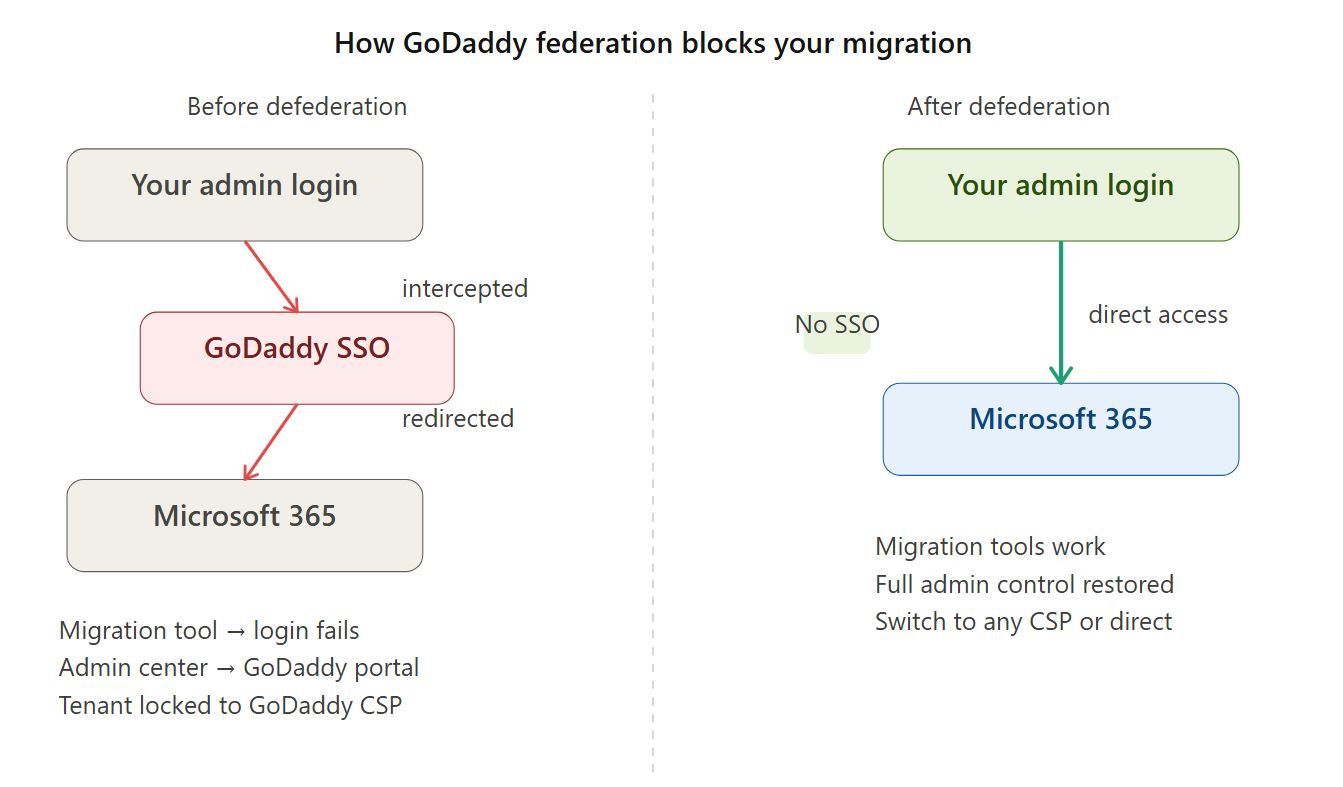
What federation actually does to your tenant
When your Microsoft 365 tenant is GoDaddy-federated, every authentication request from your domain is intercepted and routed through GoDaddy’s SSO system. This has three concrete consequences:
- Migration tools cannot authenticate. Tools like BitTitan, Cloudiway, and Microsoft’s own IMAP Migration Wizard use service accounts to connect to Exchange Online. When they try to authenticate, their API calls are redirected to sso.godaddy.com, which is not designed to accept automated tool credentials. The tools fail at login with no clear error message explaining why.
- The Microsoft 365 Admin Center is not fully accessible. Logging in at portal.microsoft.com or admin.microsoft.com with your regular admin account routes through GoDaddy’s portal first. You see a GoDaddy-branded interface, and many native Microsoft 365 admin functions — particularly around domain management, advanced security settings, and partner relationships — are restricted or hidden.
- You cannot move your tenant to a direct Microsoft CSP relationship. Microsoft’s Cloud Solution Provider program requires tenants to have Managed domain authentication. Federated tenants cannot be transferred to a direct CSP without first completing defederation.
None of this is unique to your situation. GoDaddy federates every Microsoft 365 tenant they provision. If you bought Microsoft 365 from GoDaddy, your tenant is federated by default.
How to Tell If Your Microsoft 365 Tenant Is GoDaddy-Federated
Your tenant is GoDaddy-federated if any of the following are true:
- Clicking the admin tile at office.com redirects you to a GoDaddy-branded portal instead of the native Microsoft 365 Admin Center at admin.microsoft.com
- Migration tools like BitTitan, Cloudiway, or Microsoft’s IMAP Migration Wizard fail to authenticate even with correct admin credentials
- You purchased your Microsoft 365 subscription through GoDaddy’s website, through GoDaddy’s control panel, or bundled with your GoDaddy domain registration
- Your admin login URL contains sso.godaddy.com or redirects through godaddy.com before reaching Microsoft
- You cannot find a native Microsoft 365 Partner relationships section in your admin center
You can also verify federation status using PowerShell. Connect to Microsoft Online Services and run Get-MsolDomain | Select Name, Authentication. If the Authentication column shows “Federated” for your custom domain, defederation is required before migration can proceed.
If you purchased GoDaddy Workspace Email — GoDaddy’s legacy hosted email product that predates their Microsoft 365 reseller arrangement — your situation is different. Workspace Email is not a Microsoft 365 product and does not involve federation. You can migrate from GoDaddy Workspace Email to Office 365 using a standard IMAP migration without any defederation steps. See our complete GoDaddy to Office 365 migration guide for the full IMAP process.
Why You Must Defederate Before You Can Migrate
Defederation is not optional if you want to migrate away from GoDaddy. It is a prerequisite. Without it, none of the standard migration paths work.
Here is what happens when you attempt a migration on a federated GoDaddy tenant without defederating first:
- BitTitan MigrationWiz — fails at the credential verification step with an authentication error. The tool attempts to authenticate using Microsoft’s standard OAuth endpoint, but your domain redirects to GoDaddy’s SSO, which does not complete the OAuth handshake.
- Cloudiway — same failure mode as BitTitan. The connection test fails and the tool reports a login error even when the credentials are correct.
- Microsoft’s native IMAP Migration Wizard in Exchange Admin Center — cannot create migration endpoints because it cannot verify admin access to the source mailboxes through the federation layer.
- PowerShell connections to Exchange Online — succeed only if you use the onmicrosoft.com admin account (see Step 1 below). Using your custom domain admin account will fail because it authenticates through GoDaddy’s SSO.
Some administrators try to work around federation by using application passwords, alternate credentials, or legacy authentication methods. These workarounds are unreliable, security-compromising, and ultimately do not allow a full tenant migration. The correct path is defederation.
Defederation vs Full Migration — Which One Do You Need?
Before starting, understand which scenario applies to you — they require different approaches.
Defederation only (no data migration)
If your users, mailboxes, and data are already in your Microsoft 365 tenant — which they are, since GoDaddy provisioned the tenant with Microsoft — then you do not need to migrate data. Your emails, contacts, and calendars are already in Microsoft’s infrastructure. What you need is to transfer tenant control. Defederation alone, followed by reassigning licenses, is sufficient.
This is the most common scenario for businesses migrating away from GoDaddy-managed Microsoft 365. The data is already where it needs to be. The problem is access and control, not data location.
Defederation plus data migration
If you also need to move from GoDaddy Workspace Email (the legacy hosted email product) to Microsoft 365 at the same time, you will need defederation for your existing Microsoft 365 tenant plus an IMAP migration for the Workspace Email data.
Alternatively, some organisations prefer to migrate to a fresh new Microsoft 365 tenant entirely rather than taking over their GoDaddy-federated one. This avoids defederation complexity but requires a full tenant-to-tenant data migration. See our Office 365 tenant to tenant migration guide if this applies to your situation.
Which is right for you?
- You bought Microsoft 365 from GoDaddy and want to switch to Apps4Rent or Microsoft direct → Defederation only
- You use GoDaddy Workspace Email and want to move to Office 365 → IMAP migration only (no defederation needed)
- You use both GoDaddy Workspace Email and GoDaddy-managed Microsoft 365 → Defederation plus IMAP migration
- You want a completely fresh Microsoft 365 tenant → New tenant setup plus tenant-to-tenant migration
How to Defederate Microsoft 365 from GoDaddy — Complete Step-by-Step Guide
The defederation process has seven stages. They must be completed in the order shown. Skipping or reversing steps — especially Steps 4 and 5 — can result in GoDaddy’s automated system deleting all users in your tenant. This is recoverable but requires a Microsoft support case and significant downtime.
Read all steps before starting. Have your preparation work done before you run any PowerShell commands.
Before you start — preparation checklist
- Document all users, their email addresses, and their current licenses
- Notify all users that they will need to reset their passwords and may be briefly unable to log in
- Identify all custom domains registered in your tenant (including alias domains you may have forgotten about)
- Back up any critical data using an Office 365 backup solution before making changes
- Have your new Microsoft 365 license provider (Apps4Rent or Microsoft direct) ready to assign licenses immediately after Step 3
- Lower your DNS TTL values to 300 seconds 48 hours before starting, so DNS changes propagate quickly when needed
Stage 1 — Locate the hidden Global Admin account
Every GoDaddy-federated tenant has a hidden Global Admin account with a username in the format admin@YOURTENANTID.onmicrosoft.com. This account authenticates directly through Microsoft — it bypasses GoDaddy’s SSO — and it is the only admin account you can use to perform defederation.
To find this account:
- Go to
portal.azure.comin a private/Incognito browser window - Sign in with your regular GoDaddy-managed admin credentials (this will route through GoDaddy SSO — that is fine for this step)
- Navigate to Azure Active Directory → Users
- Look for the account ending in @YOURTENANTID.onmicrosoft.com — this is the hidden Global Admin
- Click on that account, go to Authentication methods, and add a new phone number or email address so you can reset the password
- Reset the password for this account
- Sign out completely, open a fresh Incognito window, and log in to portal.azure.com using the
admin@YOURTENANTID.onmicrosoft.comaccount with the new password
You must use an Incognito window for the new login. If GoDaddy’s session cookie is still active in your regular browser, the login will be intercepted even for the onmicrosoft.com account.
Once you are signed in as the onmicrosoft.com admin, you have true Global Admin access to your tenant that does not route through GoDaddy. All subsequent steps use this account.
Stage 2 — Install the required PowerShell module
Defederation requires the Microsoft Graph PowerShell SDK. The older MSOnline module (Azure AD PowerShell) is being deprecated by Microsoft and may not work reliably for this operation.
Open PowerShell as Administrator and run:
Install-Module Microsoft.Graph -Scope CurrentUser -Force
Connect-MgGraph -Scopes "Domain.ReadWrite.All","Directory.AccessAsUser.All"
When prompted, sign in with your admin@YOURTENANTID.onmicrosoft.com account. Do not sign in with your GoDaddy-federated custom domain account — it will not have the permissions to perform this operation.
Stage 3 — Run the defederation command for every domain
This is the critical step. You must run the authentication conversion command for every domain registered in your tenant — not just your primary domain. This includes any alias domains, parked domains, and subdomains that are verified in your Microsoft 365 tenant.
First, list all your domains to make sure you have them all:
Get-MgDomain | Select Id, AuthenticationType
For each domain showing AuthenticationType as “Federated,” run:
Update-MgDomain -DomainId "yourdomain.com" -AuthenticationType "Managed"
Replace yourdomain.com with each of your federated domains. Run the command for each one separately. Once complete, run Get-MgDomain | Select Id, AuthenticationType again and confirm every domain now shows “Managed.”
⚠ Warning: Missing even one domain causes the defederation to fail silently — some users will still be redirected through GoDaddy’s SSO even though the command appeared to succeed. Always verify every domain is showing Managed before proceeding.
⚠ Warning: Do not attempt to reverse this step on your own if something goes wrong. Re-federating a tenant with GoDaddy requires a joint Microsoft–GoDaddy support case that takes 7–10 business days to resolve.
Stage 4 — Reset passwords for all users immediately
The moment defederation completes, all user passwords that relied on GoDaddy’s SSO stop working. Users will be immediately locked out. This is expected and unavoidable — you must have a password reset plan ready before running Stage 3.
To reset passwords in bulk, connect to Microsoft Graph PowerShell and run:
$users = Get-MgUser -All
foreach ($user in $users) {
    $passwordProfile = @{
        forceChangePasswordNextSignIn = $true
        password = "TempPass2026!"
    }
    Update-MgUser -UserId $user.Id -PasswordProfile $passwordProfile
}
This sets a temporary password for all users and forces them to create a new password on next login. Communicate the temporary password to users before you run Stage 3 so they are not completely blocked when defederation completes.
For smaller organisations, you can reset passwords manually through the Microsoft 365 Admin Center at admin.microsoft.com → Users → Active Users → select user → Reset password.
Stage 5 — Assign new licenses
GoDaddy-issued Microsoft 365 licenses cannot be transferred to a new provider. Once you defederate, you need to purchase new licenses through Apps4Rent or Microsoft direct and assign them to your users. GoDaddy licenses will remain active until their subscription end date but will eventually expire.
Purchase your new Exchange Online plan or Microsoft 365 plan before defederation so you can assign licenses immediately. Users without licenses assigned will lose access to premium Microsoft 365 features.
To assign licenses through Microsoft 365 Admin Center: go to Users → Active Users, select each user, click Licenses and Apps, and assign the new license. For bulk assignment, use the Microsoft 365 admin center’s group-based licensing or contact Apps4Rent to handle this as part of the migration service.
Stage 6 — Remove GoDaddy as Delegated Admin
This is the step that most administrators overlook and the one with the most serious consequences if missed.
GoDaddy has Delegated Admin access to your tenant — a relationship that persists even after defederation is complete. While this relationship exists, GoDaddy retains the ability to make changes to your tenant, and more critically, when you eventually cancel your GoDaddy subscription, their automated offboarding script will run through this delegated access and delete all users from your tenant.
Remove GoDaddy as Delegated Admin before you cancel their subscription:
- Go to Microsoft 365 Admin Center → Settings → Partner relationships
- Find GoDaddy in the list of partners
- Click on GoDaddy and select Remove partner
- Also go to Azure Active Directory → Enterprise applications and search for any GoDaddy applications
- Delete any GoDaddy Enterprise applications found — these can be used for write access even after the partner relationship is removed
⚠ Critical: If you cancel your GoDaddy subscription before completing Stage 6, GoDaddy’s automated offboarding script will delete all users in your tenant and remove your primary domain. This action is technically recoverable through a Microsoft support case but involves significant downtime and risk. Do not skip this step.
Stage 7 — Update DNS records and cancel GoDaddy
Update your DNS records to point to Microsoft-managed values. The key records to update are:
- MX record — point to your Microsoft 365 mail server (format: YOURTENANTID.mail.protection.outlook.com)
- Autodiscover CNAME — point to autodiscover.outlook.com
- SPF TXT record — update to include:spf.protection.outlook.com — check for duplicate SPF records, as GoDaddy accounts commonly have two SPF records which will cause email delivery failures
- DKIM — enable DKIM signing through Microsoft 365 Admin Center → Security → Email Authentication
Once DNS propagation is complete (allow 24–48 hours for full global propagation), test inbound and outbound email flow. When all tests pass and you have confirmed Stage 6 is complete, cancel your GoDaddy subscription from GoDaddy’s billing portal. Let the subscription expire at the end of its billing term rather than requesting an immediate cancellation, which can trigger faster automated offboarding.
Common GoDaddy Defederation Errors and How to Fix Them
Error: PowerShell authentication fails with “Access Denied”
Cause: You are running the PowerShell commands while signed in with your GoDaddy-federated custom domain admin account instead of the onmicrosoft.com account.
Fix: Disconnect from Microsoft Graph (Disconnect-MgGraph), then reconnect using the admin@YOURTENANTID.onmicrosoft.com account from Stage 1.
Error: Some users can still log in via GoDaddy after defederation
Cause: You have an alias domain or a subdomain that is still federated. You ran the conversion command only for your primary domain.
Fix: Run Get-MgDomain | Select Id, AuthenticationType and identify any remaining Federated domains. Run Update-MgDomain for each one.
Error: Migration tool still fails to authenticate after defederation
Cause: Browser session cache. GoDaddy’s session cookie is still active in your browser and intercepting authentication attempts.
Fix: Clear all browser cookies and cache, then retry in a fresh Incognito window. Also ensure you are using the onmicrosoft.com admin account for migration tool credentials, not the GoDaddy-federated custom domain account.
Error: “Cannot remove partner — contact Microsoft support”
Cause: GoDaddy’s delegated admin relationship has a lock that prevents self-service removal in some tenants.
Fix: Contact Microsoft support through admin.microsoft.com → Support → New service request. Explain that you need GoDaddy removed as Delegated Admin. Microsoft can force-remove the relationship and this typically takes 24–48 hours.
Error: Duplicate SPF records causing email delivery failures after DNS update
Cause: GoDaddy commonly adds their own SPF record to tenant DNS alongside the Microsoft SPF record during provisioning, resulting in two SPF records for the same domain. Having two SPF records causes all email from your domain to fail SPF checks.
Fix: Check your DNS for the domain. If you see two TXT records beginning with “v=spf1,” combine them into one record. Your SPF record should be a single TXT record: v=spf1 include:spf.protection.outlook.com -all
What Happens After Defederation Is Complete
Once defederation is complete and confirmed, your Microsoft 365 tenant behaves exactly like any standard Microsoft 365 tenant that was never managed by GoDaddy. Here is what changes:
- Direct admin access is restored. Logging in at admin.microsoft.com with your admin account goes directly to Microsoft’s native Admin Center without any GoDaddy redirection.
- Migration tools work. BitTitan, Cloudiway, and Microsoft’s native IMAP Migration Wizard can now authenticate and connect to Exchange Online.
- Full Microsoft 365 admin capabilities are available. Advanced security settings, Conditional Access policies, Microsoft Intune, Microsoft Defender — all features that GoDaddy’s management layer restricted are now directly accessible.
- You can switch to any Microsoft CSP partner. Your tenant is no longer locked to GoDaddy’s CSP relationship. You can add Apps4Rent as your Microsoft partner to manage licensing and support going forward.
- Email continues to flow normally. Users can send and receive email through their existing addresses. No email addresses change during defederation — only the authentication mechanism changes.
What does not change after defederation:
- Your domain name — it stays the same
- Your email addresses — all existing addresses remain
- Your email data — all mailbox contents remain in Microsoft’s servers unchanged
- Your SharePoint sites, OneDrive files, and Teams channels — all remain intact
How Long Does GoDaddy Defederation Take?
The technical defederation process — running the PowerShell commands — takes approximately 30–60 minutes once you are prepared. Total elapsed time from start to finish depends on your organisation size and how much coordination is needed:
- Small businesses (1–25 users): 2–4 hours total including preparation, defederation, password resets, and license assignment
- Medium businesses (25–100 users): 4–8 hours, primarily due to coordinating password resets across users
- Larger organisations (100+ users): 1–3 days, accounting for staged password reset coordination, department-by-department verification, and DNS propagation time
DNS propagation after updating records takes 24–48 hours for full global propagation. During this window, some users in different regions may experience intermittent email routing issues. Lowering your DNS TTL to 300 seconds 48 hours before starting significantly reduces this window.
If you encounter a situation where GoDaddy needs to be contacted — for example if the partner removal is blocked — add 24–48 hours for GoDaddy support response. If Microsoft support is needed to force-remove a delegated admin relationship, add another 24–48 hours.
Special Case: GoDaddy Tenants with Proofpoint
Some GoDaddy Microsoft 365 subscriptions include Proofpoint email security as an add-on. If your GoDaddy plan includes Proofpoint, defederation requires additional steps.
Proofpoint is configured at the DNS level — your MX record points to Proofpoint’s servers, which then forward email to Microsoft Exchange Online. When you defederate and update your MX record to point directly to Microsoft, Proofpoint filtering stops working unless you specifically set up Proofpoint outside of GoDaddy’s management.
Additionally, GoDaddy’s Proofpoint subscription is tied to their tenant management relationship and will be discontinued when you cancel GoDaddy. If you want to continue using Proofpoint after defederation, you need to purchase Proofpoint directly and configure it independently before cancelling GoDaddy.
If you do not need to continue with Proofpoint, you can replace it with Microsoft Exchange Online Protection and Microsoft Defender for Office 365, which provide comparable email security without a separate vendor relationship.
Note: GoDaddy Barracuda Email Archiving can be migrated directly to Barracuda after defederation without data loss. Contact Barracuda support for the domain migration process before cancelling GoDaddy.
How Apps4Rent Handles GoDaddy Defederation
Apps4Rent is a Microsoft Solutions Partner that has handled hundreds of GoDaddy defederation and migration projects across businesses of all sizes in the United States. Our defederation service covers every step in this guide — we perform the defederation on your behalf so you do not need to run PowerShell commands, manage the timing, or coordinate user password resets manually.
What our defederation service includes:
- Pre-defederation audit — we identify all domains in your tenant, check for Proofpoint or other add-ons, and flag any issues before starting
- Full PowerShell defederation — we run every command with verification at each stage
- Coordinated password reset — we manage user communication and password resets to minimise downtime
- License reassignment — we handle new license procurement and assignment
- GoDaddy partner removal — we ensure GoDaddy is fully removed as Delegated Admin and their Enterprise App is deleted
- DNS update and verification — we update your MX, Autodiscover, SPF, and DKIM records and verify mail flow
- GoDaddy cancellation guidance — we advise on the right timing and method to cancel GoDaddy without triggering their automated offboarding
- Post-defederation verification — we confirm all migration tools connect successfully and admin access is fully restored
Our team is available 24/7 by phone, live chat, and email. Defederation projects are scheduled and completed with minimal disruption to business operations, typically scheduled outside business hours when coordinating password resets for larger organisations.
No Data Loss
Submit Your Defederation Requirements
FAQs on Defederating Microsoft 365 from GoDaddy
-
What does defederate M365 from GoDaddy mean?
Defederating Microsoft 365 from GoDaddy means converting your tenant’s domain authentication from Federated — where GoDaddy’s SSO controls login — to Managed, where Microsoft handles authentication directly. After defederation, you have full, unmediated access to your Microsoft 365 tenant and can use all native Microsoft admin tools, migration software, and partner relationships without GoDaddy’s involvement.
-
Will defederation delete my emails or data?
No. Defederation does not delete any email data, contacts, calendars, SharePoint files, OneDrive documents, or Teams content. It changes authentication only — it does not touch data. The risk of data loss comes specifically from cancelling your GoDaddy subscription before removing them as Delegated Admin (Stage 6), which triggers their automated offboarding script. If you follow the stages in the correct order, no data is lost.
-
Can I defederate GoDaddy Microsoft 365 myself?
Yes, the process is technically possible for an IT administrator comfortable with PowerShell and Azure Active Directory. However the risk of making an irreversible mistake — particularly at Stage 6 where incorrect sequencing can result in GoDaddy deleting all tenant users — means many organisations prefer to use a professional service.
-
Do I lose my email addresses when I defederate?
No. Your email addresses remain exactly the same after defederation. If your address is john@yourcompany.com before defederation, it is john@yourcompany.com after. The domain stays registered through GoDaddy’s registrar — only the DNS records are updated to point to Microsoft-managed mail servers. Your email addresses, display names, and email history are all preserved.
-
Why does the Microsoft 365 Admin Center redirect to GoDaddy?
The Microsoft 365 Admin Center redirects to GoDaddy because your tenant is federated — GoDaddy has configured your domain’s authentication to route through their SSO portal at sso.godaddy.com. Every admin login using your custom domain is intercepted by this federation and redirected to GoDaddy’s branded interface. Defederation removes this redirection and restores direct access to Microsoft’s native admin.microsoft.com interface.
-
What is the difference between GoDaddy defederation and GoDaddy migration?
Defederation is the process of reclaiming control of an existing Microsoft 365 tenant from GoDaddy’s SSO management. Migration is the process of moving email data from one system or tenant to another. If your email data is already in a GoDaddy-managed Microsoft 365 tenant, you need defederation, not migration — your data does not need to move because it is already in Microsoft’s infrastructure. Migration (moving data between systems) is required separately if you are also moving from GoDaddy Workspace Email or from a different email platform.
-
Can I keep my domain at GoDaddy after defederation?
Yes. Your domain registration stays with GoDaddy’s registrar regardless of defederation. Defederation changes DNS records and removes GoDaddy’s control over your Microsoft 365 tenant, but it does not affect domain registration. You can keep your domain registered at GoDaddy indefinitely, transfer it to another registrar, or do anything else with it — domain registration and Microsoft 365 tenant management are completely independent after defederation.
-
How much does GoDaddy defederation cost with Apps4Rent?
Apps4Rent’s GoDaddy defederation service starts at $40/user. Final pricing depends on the number of users in your tenant, whether additional services are needed (such as Proofpoint migration or Barracuda archiving transfer), and the complexity of your DNS configuration. New Microsoft 365 licenses are also required since GoDaddy-issued licenses cannot be transferred. Contact Apps4Rent for a custom quote based on your specific environment.
-
What happens to GoDaddy licenses after defederation?
GoDaddy-issued Microsoft 365 licenses remain active until their subscription end date but cannot be transferred or renewed outside of GoDaddy. After defederation, you must purchase new licenses through a direct Microsoft partner like Apps4Rent or through Microsoft direct. Assign the new licenses to your users before GoDaddy licenses expire to ensure uninterrupted access to Microsoft 365 features.
-
Is GoDaddy defederation the same as cancelling GoDaddy?
No, and the distinction is critical. Defederation is a technical process that changes your tenant’s authentication configuration. Cancelling GoDaddy is a billing action. Defederation must be completed before you cancel GoDaddy — specifically, you must remove GoDaddy as Delegated Admin (Stage 6) before cancelling. If you cancel GoDaddy’s subscription without completing Stage 6, GoDaddy’s automated offboarding script runs and deletes all users in your tenant. Always complete defederation fully before cancelling.
Apps4Rent – Tier 1 Office 365 Cloud Solution Provider