Office 365 MX Record and DNS Setup: MX, SPF, DKIM and DMARC
-
 Last updated: 23 November 2026
 Office 365
-
 Editorial Team
Moving email to Microsoft 365 comes down to one small change at the end: you edit a few lines in your DNS. Get them right and nobody notices the move. Get them wrong and mail bounces, goes missing or lands in spam, and the cause is hard to see because DNS does not announce its mistakes.
This guide covers the records that matter for an email cutover: the Office 365 MX record, SPF, Autodiscover, DKIM and DMARC. You get the exact values from Microsoft’s documentation, the right order to change them in, how to test each one and the mistakes that cause most failed cutovers. We run these moves for customers every week, so we have also included what we would check before touching anything.
Quick answer: Point your MX record to Microsoft 365 last, after your mailboxes are ready and your SPF and Autodiscover records are in place. The MX value is your MX token followed by .mail.protection.outlook.com, and it needs a lower preference number than any other MX record. Then turn on DKIM and start DMARC at p=none.
Key Takeaways
- The MX record decides where your mail is delivered. Change it last, once the mailboxes are ready.
- Use the exact MX value from the Microsoft 365 admin center. It follows the pattern MX token followed by .mail.protection.outlook.com.
- A domain can have only one SPF record. Two records cause a permanent SPF error, and more than 10 DNS lookups does the same.
- DKIM needs two CNAME records, selector1 and selector2, and it must be switched on after they are published.
- Start DMARC at p=none, read the reports, then move to quarantine and reject.
- DNS changes take from a few minutes to 48 hours to spread, so keep the old mailboxes running until the switch has settled.
The Five DNS Records Behind Microsoft 365 Email
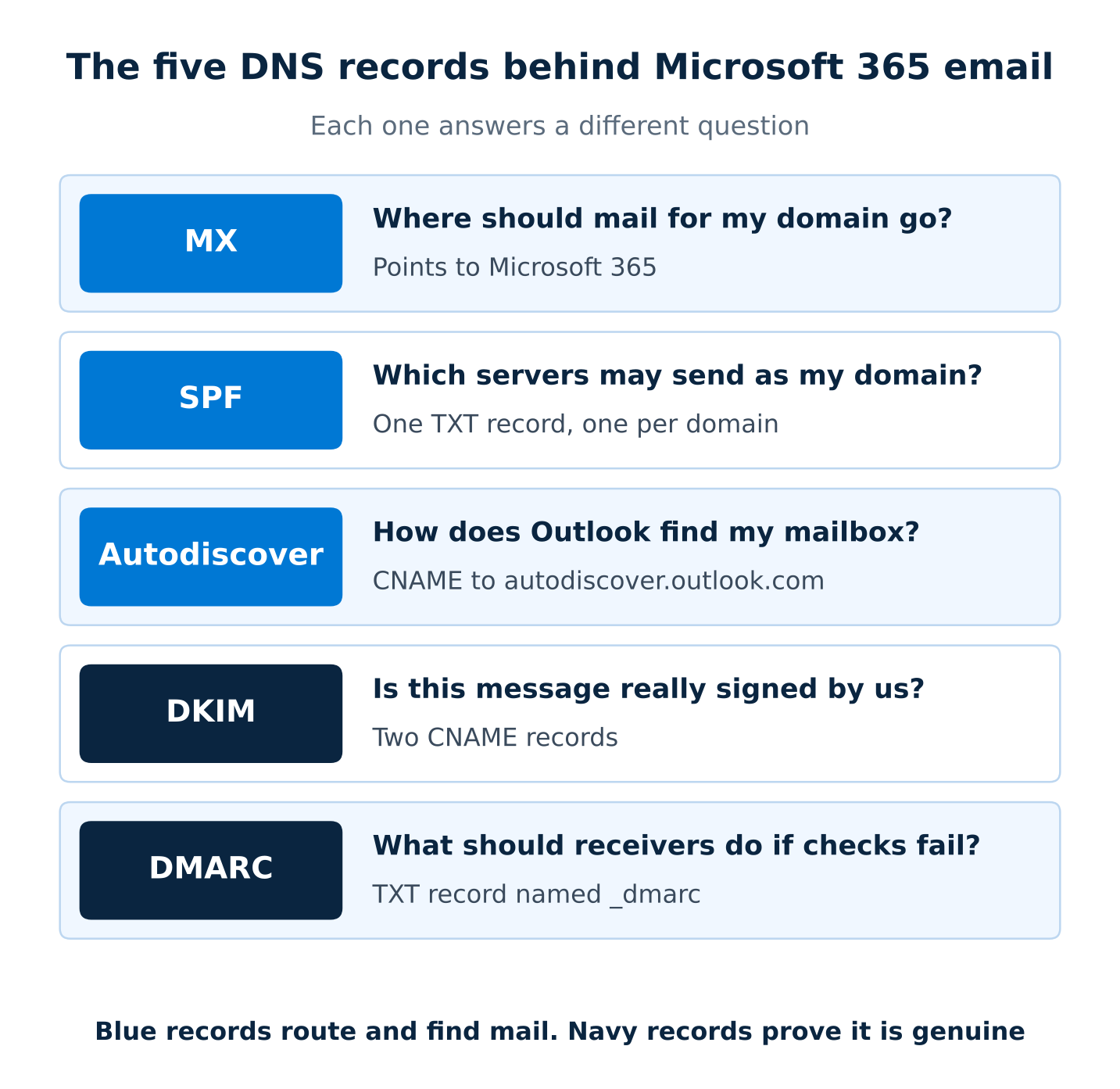
Five records control how email behaves after a move: MX, SPF, Autodiscover, DKIM and DMARC. Each answers a different question, and each can fail on its own, which is why a cutover that “mostly works” is so common.
| Record | Type and host | Value from Microsoft | What goes wrong without it |
|---|---|---|---|
| MX | MX on your domain | <MX token>.mail.protection.outlook.com, with a lower preference than any other MX record |
Mail keeps going to the old server, or is not delivered at all |
| SPF | TXT on @ | v=spf1 include:spf.protection.outlook.com -all for Microsoft 365 only |
Receivers distrust your mail, and it can land in spam |
| Autodiscover | CNAME named Autodiscover | autodiscover.outlook.com |
Outlook and phones cannot find the mailbox on their own |
| DKIM | Two CNAMEs, selector1._domainkey and selector2._domainkey | Values specific to your domain. Copy them from Microsoft | Your mail is not signed by your domain |
| DMARC | TXT named _dmarc | v=DMARC1; p=none; rua=mailto:you@yourdomain.com to start |
Receivers have no policy for mail that fails the checks |
The first three records route and locate mail, and the last two prove it is genuine. Only MX and Autodiscover affect whether mail arrives and whether Outlook connects. SPF, DKIM and DMARC affect whether it is trusted when it gets there, and that is where mail quietly ends up in junk folders.
Check your cloud: The values in this guide are for the standard worldwide Microsoft 365 cloud. Microsoft uses different SPF hosts for GCC High, DoD and the 21Vianet cloud. If your tenant is in one of those, use the values Microsoft shows in your admin center.
Before You Change Anything
Most DNS cutover problems are decided before the change, by what you did or did not write down. Spend an hour on this list and the change itself takes minutes.
- Export your current DNS. Copy every record to a spreadsheet or take a screenshot. If something breaks you want the old values in front of you, not in your memory.
- Find out who hosts your DNS. It is often a registrar or a web host, and it may not be the company you pay for email. You need login access to that account.
- List everything that sends email as your domain. Think of invoicing software, newsletters, helpdesk tools, scanners and website forms. Each one has to be accounted for in SPF.
- Lower your TTL a day or two ahead. The TTL is how long other servers remember a record. A short one means the MX change spreads faster. This is our own practice and not a Microsoft requirement, and you can raise the value again afterwards. Microsoft’s own examples use 3600 seconds.
- Verify your domain in Microsoft 365. The TXT record that proves ownership does not change where mail goes. Our walkthrough of domain verification and setup in a tenant covers that step in detail.
- Decide how mail will be copied. The right method depends on your source system and size. If you are not sure which fits, choosing a migration method explains the options.
The steps apply whether you are moving from a hosting provider, another email platform or an on-premises server.
The Safe Order for an Email DNS Cutover
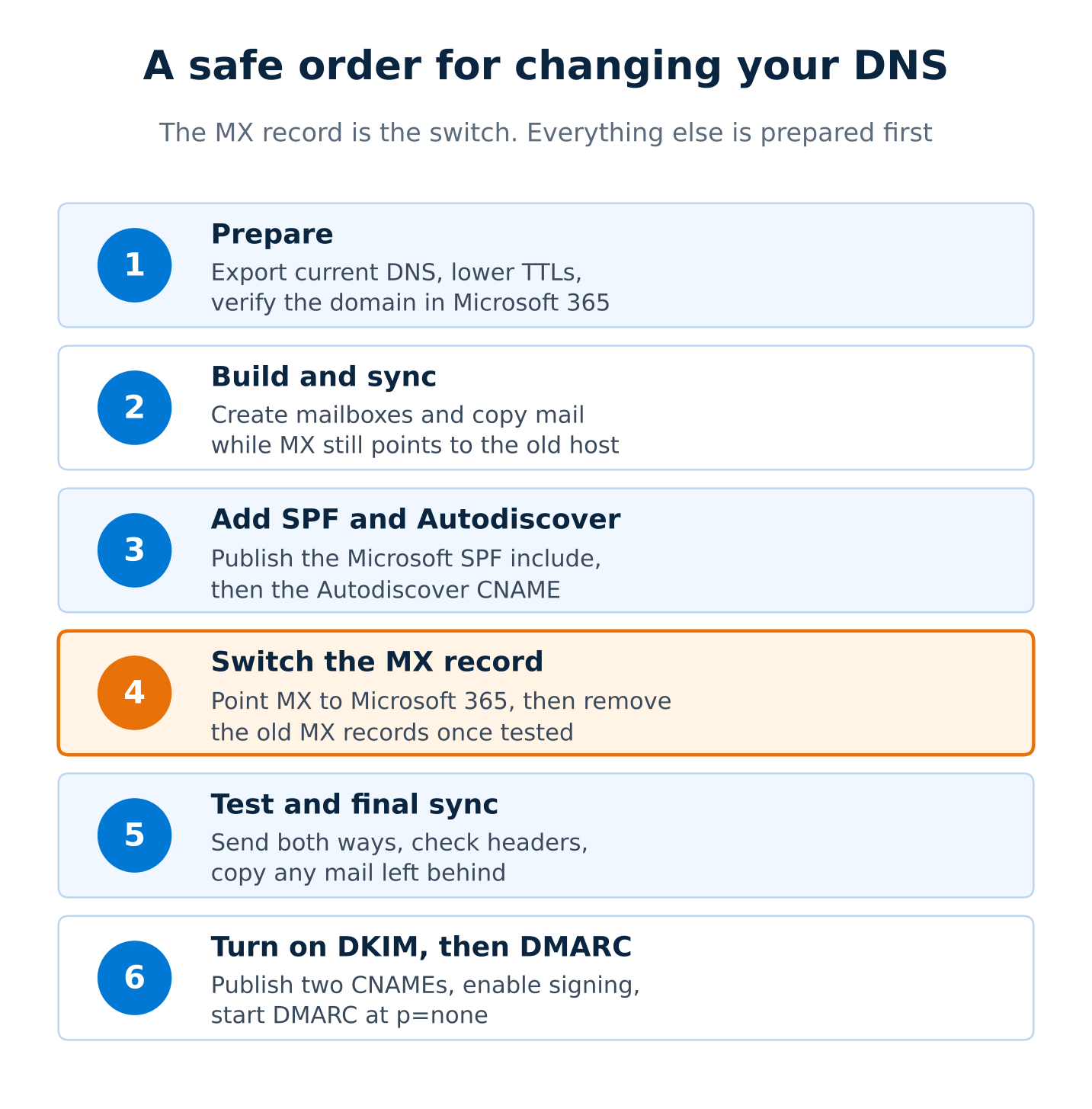
Change records in this order: prepare, sync mail, add SPF and Autodiscover, switch MX, test, then enable DKIM and DMARC. The MX record is the switch, so everything else is ready before you flip it.
-
Step 1: Prepare
Export your DNS, lower the TTLs and verify the domain. Create the user accounts and mailboxes in Microsoft 365, but leave the MX record alone.
-
Step 2: Build and sync
Create the mailboxes and copy the existing mail to them while your MX still points to the old host. Mail keeps flowing to the old server, so nobody is affected, and the sync can run for days if the mailboxes are large.
-
Step 3: Add SPF and Autodiscover
Update your SPF record to include Microsoft 365 (keeping any existing senders), and add the Autodiscover CNAME. Neither record changes where mail is delivered, so both are safe to publish early.
-
Step 4: Switch the MX record
Add the Microsoft 365 MX record with the lowest preference number, then remove the old MX records once you have tested. This is the moment mail starts arriving in Microsoft 365.
-
Step 5: Test and run a final sync
Send mail both ways, check message headers and run one last sync to pick up anything that arrived at the old server after your first copy.
-
Step 6: Turn on DKIM, then DMARC
Publish the two DKIM CNAME records, turn signing on and start DMARC with a monitoring policy. These can follow the cutover, so they never delay it.
Want a DNS cutover with no lost email?
Our engineers plan the order, copy the mail, change the records and test delivery with you. There is no additional migration charge when you buy your Microsoft 365 licenses through us.
The Office 365 MX Record
The MX record tells the internet to deliver your mail to Microsoft 365, and its value is your MX token followed by .mail.protection.outlook.com. It is the single most important record in the whole move.
| Field | What to enter |
|---|---|
| Host / name | @ (your domain) |
| Points to | <MX token>.mail.protection.outlook.com |
| Priority | A lower number than every other MX record. Microsoft’s example is 1, or “low” |
| TTL | Microsoft’s example is 3600 seconds (one hour) |
-
How to find your exact value
Microsoft says to get your MX token from the admin center. Go to Domains, choose Fix issues in the Action column for your domain, then choose What do I fix? in the MX records section. Copy the value shown. Do not guess it from your domain name, and do not copy one from a blog post, including this one, because it will not be yours.
-
What priority means
Mail servers try the MX record with the lowest number first. If you leave the old records in place with lower numbers than Microsoft’s, mail keeps going to the old server. If both have the same number, senders may choose either. That is why Microsoft says the new record must be lower than any other.
-
Remove the old MX records
Once mailboxes are live and you have tested, remove the old MX records. Leaving them is the most common reason a few messages keep landing in the wrong place for weeks. Do it only after testing, because the old records are your safety net until then.
-
Do not put a filter in front without a plan
If another service, such as a spam filter, sits in front of Microsoft 365 and receives mail first, your MX points to that service and not to Microsoft. That is valid, but it changes how some checks work. For example, Microsoft says it sends DMARC aggregate reports only when the MX record for the domain points directly to Microsoft 365.
SPF: Which Servers May Send as You
SPF is a single TXT record on your domain that lists the servers allowed to send mail as you, and for Microsoft 365 it must include spf.protection.outlook.com. It is the record people break most often, because they add a second one instead of editing the first.
| Situation | SPF record |
|---|---|
| Microsoft 365 is the only sender | v=spf1 include:spf.protection.outlook.com -all |
| Microsoft 365 plus an on-premises server with a fixed IP address | v=spf1 ip4:192.168.0.10 include:spf.protection.outlook.com -all (example from Microsoft) |
| Microsoft 365 plus another sending service | One record that lists both includes, for example v=spf1 include:servers.example.net include:spf.protection.outlook.com -all |
The rules that matter
- One record per domain. Microsoft states that multiple SPF TXT records for the same domain or subdomain cause SPF to return a permanent error. Edit the existing record. Never add a second.
- No more than 10 DNS lookups. The include, a, mx, exists and redirect terms each count. Terms such as ip4 and ip6 do not. Microsoft notes that having fewer than 10 include statements does not guarantee fewer than 10 lookups, because included records can contain more.
- Use -all for Microsoft 365 domains. Microsoft recommends -all (hard fail) because it also recommends DKIM and DMARC. With ~all (soft fail), DMARC is effectively ignored for SPF failures when messages do not carry a DKIM signature.
- Each sending subdomain needs its own record. If you send from a subdomain, it needs its own SPF TXT record.
- Use a subdomain for services you do not control. Microsoft recommends sending bulk mail from a subdomain such as marketing.yourdomain.com and not from the main domain.
Not sure who sends as your domain? Microsoft’s advice for complex organizations is to set up DKIM and DMARC in monitoring mode quickly, and use a DMARC reporting service to find mail sources and SPF failures. Start there before you tighten SPF.
Microsoft 365 has no admin page or PowerShell command for managing SPF records. You edit them at your DNS host.
Autodiscover: How Outlook Finds the Mailbox
Autodiscover is a CNAME record named Autodiscover that points to autodiscover.outlook.com, and it lets Outlook and mobile devices set themselves up without manual settings. Without it, people are asked for server names they do not know.
| Field | What to enter |
|---|---|
| Type | CNAME |
| Alias / host | Autodiscover |
| Target | autodiscover.outlook.com |
If your domain already has an Autodiscover record from an old server, replace it rather than adding a second one. A leftover record is a common reason Outlook keeps connecting to the old system or prompts for a password after the move.
Watch for a stray record: Microsoft’s list also includes a Suite CNAME called msoid that applies only to the 21Vianet cloud. Microsoft warns that if it is present and your tenant is not operated by 21Vianet, users get a “custom domain isn’t in our system” error. Delete it if you find it.
DKIM: Signing Your Outbound Mail
DKIM adds a digital signature to your outgoing mail, and for a custom domain in Microsoft 365 you publish two CNAME records and then switch signing on. Microsoft says no DKIM signing occurs for outbound mail from custom domains until you do this.
What the records look like
Each custom domain gets two CNAME records. The host names are the same for every Microsoft 365 organization, and the targets are specific to your domain.
| Host name | Points to |
|---|---|
| selector1._domainkey | A value starting with selector1- followed by your domain with dashes in place of dots, then your initial domain details and dkim.mail.microsoft |
| selector2._domainkey | The same pattern, starting with selector2- |
Microsoft says that the exact values depend on your initial domain and on a character it assigns, and that its examples are for illustration only. Existing domains can also use an older format. Do not build the values by hand. Copy them from the Microsoft Defender portal, or with this PowerShell command from Microsoft’s documentation: Get-DkimSigningConfig -Identity yourdomain.com | Format-List Name,Enabled,Status,Selector1CNAME,Selector2CNAME
Turn it on
- Publish both CNAME records at your DNS host.
- Wait for Microsoft 365 to detect them. Microsoft says this takes a few minutes or possibly longer.
- In the Microsoft Defender portal, open the DKIM page for the domain and turn on signing. Or use PowerShell, where Set-DkimSigningConfig with Enabled set to true does the same.
If the records are not detected yet, Microsoft shows an error containing the values it expects, which is a handy way to check your entries. Microsoft also lists a status that stays at CnameMissing after 48 hours as something to investigate.
Both records, always
Microsoft says to create both CNAME records even though only one selector is active at any time. The inactive one is needed for key rotation, and without selector2 you cannot rotate your keys. A rotation takes four days (96 hours) before the new key starts signing, and you cannot start a second rotation while one is in progress.
Your initial onmicrosoft.com domain is different. Microsoft signs mail from it automatically, so you do not need to do anything for it.
DMARC: What Receivers Should Do When Checks Fail
DMARC is a TXT record named _dmarc that tells receiving servers what to do with mail that fails SPF and DKIM checks, and you should start it in monitoring mode. A message passes DMARC if SPF or DKIM passes, so it does not require both.
| Field | What to enter |
|---|---|
| Type and host | TXT, named _dmarc |
| Starting value | v=DMARC1; p=none; rua=mailto:dmarc@yourdomain.com |
| Later value | v=DMARC1; p=reject; pct=100; rua=mailto:dmarc@yourdomain.com |
The rollout Microsoft recommends
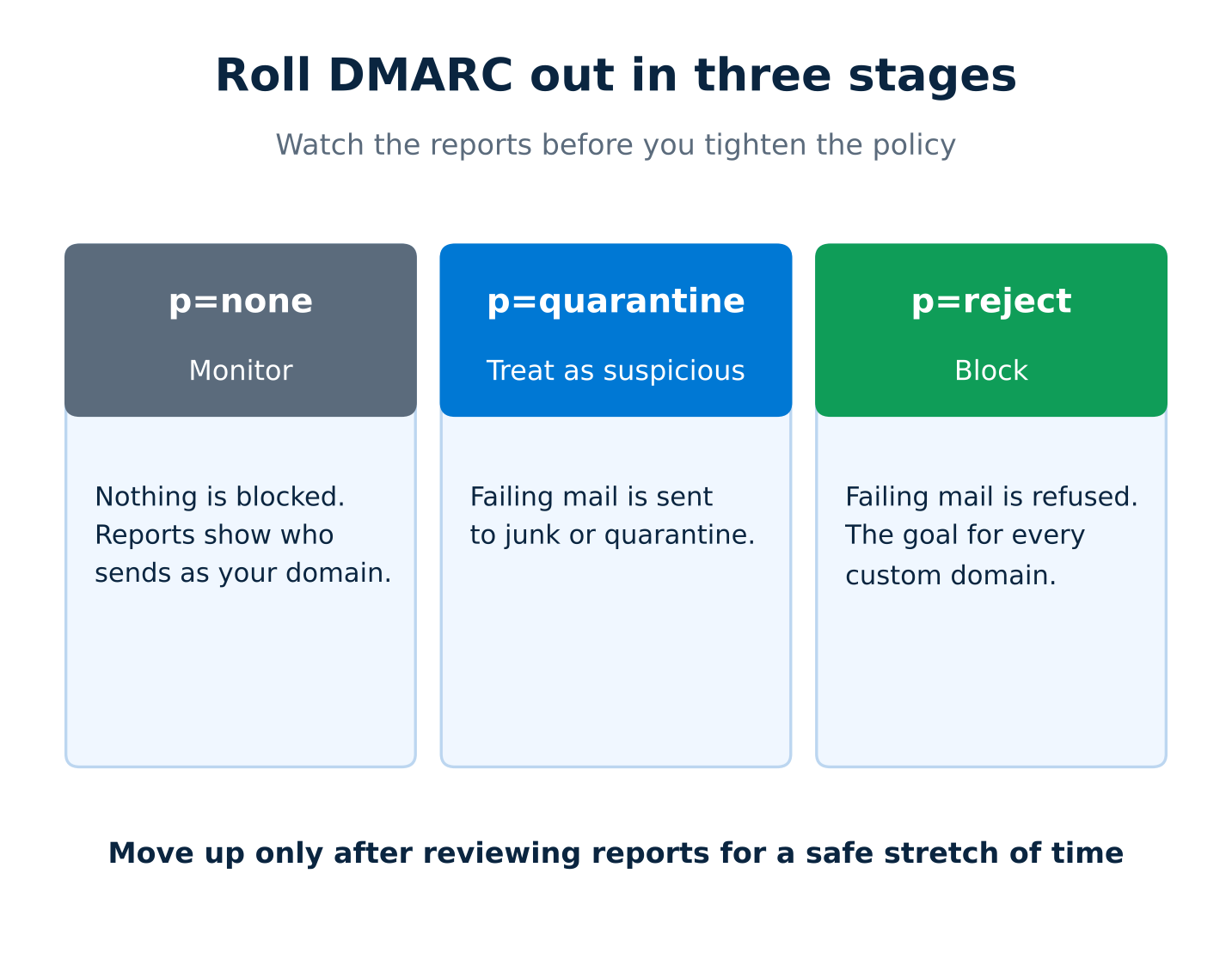
- p=none: Microsoft says to start here and monitor the results for the domain.
- p=quarantine: after enough time monitoring p=none, move up.
- p=reject: after enough time monitoring p=quarantine, move up again. This is the goal for all of your custom domains and subdomains.
You can phase it in with the pct tag, which sets the percentage of failing mail the policy applies to. If you leave it out, the default is 100. Microsoft’s example steps are 10, 25, 50, 75 and then 100.
Reports and the onmicrosoft.com domain
- Aggregate reports (rua) are daily summaries, and they are the useful ones. Microsoft sends them as long as your MX record points directly to Microsoft 365.
- Forensic reports (ruf) are not sent by Microsoft 365 for inbound mail, even if you list an address.
- The onmicrosoft.com domain needs its own DMARC TXT record, created in the Microsoft 365 admin center, even though SPF and DKIM are already handled.
For a wider look at keeping the mailbox itself safe, see our wider email security habits and options for encrypting sensitive messages.
How to Test the Change
Test each record from outside your network, and test mail in both directions, because DNS often looks right from the machine where you changed it. A few commands and two test messages catch almost every problem.
| What to check | How | What you should see |
|---|---|---|
| MX record | Run nslookup -type=mx yourdomain.com from a computer |
Only the Microsoft 365 value, once the old records are removed |
| SPF record | Run nslookup -type=txt yourdomain.com |
Exactly one record that starts with v=spf1 |
| Autodiscover | Run nslookup -type=cname autodiscover.yourdomain.com |
autodiscover.outlook.com |
| DKIM | Look at the selector1._domainkey CNAME, and the DKIM status in Microsoft Defender | Both records found, and signing turned on |
| DMARC | Run nslookup -type=txt _dmarc.yourdomain.com |
Your DMARC record |
| Mail flow | Send a message in and a message out with a personal account on another service | Both arrive in the inbox, not in junk |
Read the headers
Open the message you sent to your personal account and view its full headers. Look for the authentication results, which show whether SPF, DKIM and DMARC passed. This is the real proof that the records work together, and it takes two minutes.
Allow for DNS delay
Microsoft says DNS propagation can take a few minutes to 48 hours depending on the DNS provider and the TTL. During that window different senders see different answers. Your own computer may show the new record while a customer’s mail server still sees the old one, which is why we keep the old mailboxes running until the change has settled and then run a final sync.
Common DNS Mistakes and How to Fix Them
| Symptom | Likely cause | Fix |
|---|---|---|
| Mail still reaches the old server | Old MX records are still present or have a lower preference, or the TTL has not expired | Remove the old MX records after testing and wait for the TTL |
| Mail goes to junk or fails authentication | No SPF include for Microsoft 365, or two SPF records | Edit the single existing record to include Microsoft |
| SPF shows a permanent error | More than one SPF record, or more than 10 DNS lookups | Merge the records and trim includes |
| Outlook prompts for server settings | Autodiscover record missing or still pointing at the old server | Replace it with the Microsoft CNAME |
| Users see a “custom domain isn’t in our system” error | A leftover msoid CNAME outside the 21Vianet cloud | Delete the msoid record |
| DKIM status stays CnameMissing | CNAME entries are wrong, or DNS has not spread | Check the values against Defender, and investigate if it persists beyond 48 hours |
| No DMARC reports arrive | MX points to a filter and not directly to Microsoft 365, or a forensic address was used | Use a rua address, and confirm where the MX points |
A short checklist for the day of the change helps more than any amount of theory:
- Old DNS exported and saved.
- Mailboxes created and first sync complete.
- SPF merged into one record, and Autodiscover updated.
- MX added with the lowest preference and tested with a message in and out.
- Old MX records removed once testing is complete.
- Final sync run after the switch.
- DKIM published and enabled, and DMARC started at p=none.
Once the change has settled, run through our list of what to do after the move to catch the non-DNS items such as shared mailboxes, phones and retention.
DNS Changes in Common Migration Scenarios
The records are the same in every move, but the source system changes what you have to watch for. These are the cases we see most.
| Moving from | What to watch in DNS | Where to read more |
|---|---|---|
| Google Workspace | Two routing subdomains are used during the sync, and the MX stays on Google until the batches are done | our Google Workspace migration guide |
| A hosting provider or IMAP server | Webmail and website forms may send through the old host and need to be added to SPF or moved | our guide to an email-only move |
| Another Microsoft 365 tenant or on-premises Exchange | A domain cannot be active in two tenants at once, so plan the order carefully | our managed migration service |
Frequently Asked Questions
-
What is the Office 365 MX record?
It is a DNS record that tells the internet to deliver email for your domain to Microsoft 365. Its value is your MX token followed by .mail.protection.outlook.com, and it needs a lower preference number than any other MX record on the domain. Microsoft shows the exact value for your domain in the Microsoft 365 admin center.
-
Where do I find my MX token?
In the Microsoft 365 admin center, go to Domains and choose Fix issues in the Action column for your domain. Then choose What do I fix? in the MX records section. The page shows the exact MX value for your domain, so copy it from there and do not build it by hand.
-
Do I need to delete my old MX records?
Microsoft’s guidance is that the new record must have a lower preference number than any other MX record so mail is delivered to Exchange Online. In practice, once your mailboxes are live and tested, remove the old MX records so that no sender can still choose the old server.
-
How long does an MX change take to work?
DNS changes take from a few minutes to as long as 48 hours to spread, depending on your DNS provider and the record’s TTL. During that window some senders still use the old record, so mail can arrive in either place. Keep the old mailboxes running and run a final sync after the switch.
-
Can I have two SPF records for my domain?
No. Microsoft states that multiple SPF TXT records for the same domain cause SPF to return a permanent error, so a domain must have only one. If you also send through another service, add its include to the single existing record and keep the total under 10 DNS lookups.
-
Do I need both DKIM CNAME records?
Yes. Microsoft says to always create both selector1 and selector2 records, even though only one is active at any time. The inactive one is needed for key rotation, and without selector2 you cannot rotate your DKIM keys.
-
Which DMARC policy should I start with?
Start with p=none and monitor the reports. After enough time watching the effects, move to p=quarantine, and later to p=reject. Microsoft’s stated goal is p=reject for all of your custom domains and subdomains.
-
Is the Autodiscover record required?
Microsoft lists it as a standard Exchange Online record. It is a CNAME with the alias Autodiscover pointing to autodiscover.outlook.com, and it helps Outlook and mobile devices find the mailbox without manual settings.
-
Does the onmicrosoft.com domain need DNS records?
Not for SPF or DKIM, because Microsoft handles those for your onmicrosoft.com domain, and outbound mail from it is signed automatically. Microsoft does say you need to create the DMARC TXT record for the onmicrosoft.com domain yourself in the Microsoft 365 admin center.
Apps4Rent – Tier 1 Office 365 Cloud Solution Provider