Box to SharePoint Migration: The Complete Guide
-
 Last updated: 15 October 2026
 Migration,SharePoint
-
 Editorial Team
Most guides on moving from Box to SharePoint start with the tool. A better place to start is the difference between the two platforms. Box is organized around people and the folders they own. SharePoint is organized around sites, libraries, and teams. The copy itself is the easy part. Deciding where thousands of folders should live in the new environment is the work that determines whether the migration feels like an upgrade or a mess.
The copy is also easier than it used to be. Microsoft’s free Migration Manager, built into the Microsoft 365 admin center, now handles Box directly. It has been generally available for Box since 2021, it absorbed the older Mover tool, and Microsoft updated its Box documentation as recently as mid 2026. This guide covers what Migration Manager does, what it leaves out (version history and external sharing matter more than most teams expect), and how to plan the project so those gaps don’t surprise you. If you are also retiring Dropbox, our guide to moving Dropbox content into OneDrive covers the sister scenario.
Quick answer: Microsoft’s free Migration Manager tool copies Box files, folders, and file-level permissions into OneDrive, SharePoint, or Teams. It converts Box Notes to .docx but transfers only the latest version of each file, does not recreate external sharing links, and does not share content with external collaborators, so teams that depend on those typically add a third-party tool or a managed migration.
- Key takeaway: Migration Manager supports Box natively and at no license cost. The scan step is optional for Box, so you can send users straight to migration.
- Key takeaway: The unit of work is the Box user. The biggest design decision is which content belongs in personal OneDrive accounts and which belongs in shared SharePoint sites.
- Key takeaway: Only the latest version of each file moves. External sharing links are not recreated, and external collaborators are not shared on migrated content.
- Key takeaway: Renaming or restructuring Box folders during a migration creates duplicate data, because the incremental process treats a renamed folder as a brand new object.
- Key takeaway: Destination paths are locked once a migration starts, so review them carefully before you begin.
Why Migrate from Box to SharePoint?
Organizations move from Box to SharePoint to consolidate file storage under the Microsoft 365 subscription they already pay for, bring files into the same compliance framework as email and chat, and keep documents next to the Teams conversations about them. For a company already standardized on Microsoft 365, a separate Box contract is often the last standalone file platform left to retire.
The practical drivers are usually integration and governance rather than raw storage. Files shared in a Teams channel already live in a SharePoint site, so moving Box content there removes a copy of the truth instead of adding one. Retention, eDiscovery, and Data Loss Prevention policies in Microsoft Purview then cover files, mail, and chat in one place, and Microsoft 365 Copilot works across the content a user can already access in SharePoint and OneDrive. Organizations making this kind of consolidation move often retire several collaboration tools at once, and if chat is on the list, retiring Slack in favor of Teams has its own native tool.
Box vs. SharePoint and OneDrive: Where They Differ
| Capability | Box | SharePoint and OneDrive |
|---|---|---|
| Licensing | Separate paid subscription | Included with most Microsoft 365 business plans |
| Office co-authoring | Through integrations | Native real-time co-authoring in Word, Excel, and PowerPoint |
| Organizing principle | Folders and collaborations owned by users | Sites, libraries, and Teams channels owned by teams |
| Chat and meetings | Through integrations | Files in Teams channels are stored in SharePoint |
| Compliance | Box governance features, depending on plan | Microsoft Purview across files, email, and chat |
| AI assistant | Box AI within Box | Microsoft 365 Copilot across files, mail, chat, and meetings |
This is less about one platform being better in the abstract and more about how many separate systems your IT team has to license, secure, and support. For most Microsoft 365 organizations, that consolidation argument is what settles the decision. If you want to check which of your current subscriptions already include SharePoint and OneDrive capacity, this overview of which Microsoft 365 plans include SharePoint is a good starting point.
Should Box Content Go to OneDrive or SharePoint?
Personal and in-progress work generally belongs in OneDrive, while anything owned by a team or department belongs in a SharePoint document library, ideally one attached to a Teams team. Getting this mapping right is the single decision that most affects how the new environment feels to users.
| Type of Box Content | Best Destination | Why |
|---|---|---|
| An individual’s working files | OneDrive | Owned by one person and tied to that person’s account lifecycle |
| Department or project folders | SharePoint document library | Owned by the team, so it survives staff turnover |
| Content tied to an active team | That team’s SharePoint site, shown in Teams | Keeps files next to the conversation |
| Closed projects and archives | A governed SharePoint archive library | Easier to apply retention and restrict access |
Migration Manager works Box user by Box user, with all the files and folders each user can access in scope. That makes the destination decision more important, not less. Without a plan, shared team content can end up scattered across many personal OneDrive accounts. If you want a refresher on where each belongs, our comparison of how OneDrive and SharePoint differ walks through the trade-offs, and it is worth running a small pilot to see how shared folders appear across users before you commit to a mapping.
Does Microsoft Have a Native Box to SharePoint Migration Tool?
Yes. Migration Manager, built into the Microsoft 365 admin center, migrates Box content into OneDrive, SharePoint, and Teams at no additional license cost. Box support has been generally available since July 2021, and the capability replaced the older Mover tool, which Microsoft has fully folded into Migration Manager.
To use it you need one of three destination roles in the Microsoft 365 tenant: Global admin, OneDrive or SharePoint admin, or the dedicated Microsoft 365 Migration Administrator role, which grants migration privileges without broader admin rights. Microsoft recommends the role with the fewest permissions. On the source side you need Box credentials with read access to every Box user account you plan to migrate. The project is created from Setup, then Migration and imports, in the admin center.
How Does Migration Manager Work for Box Migrations?
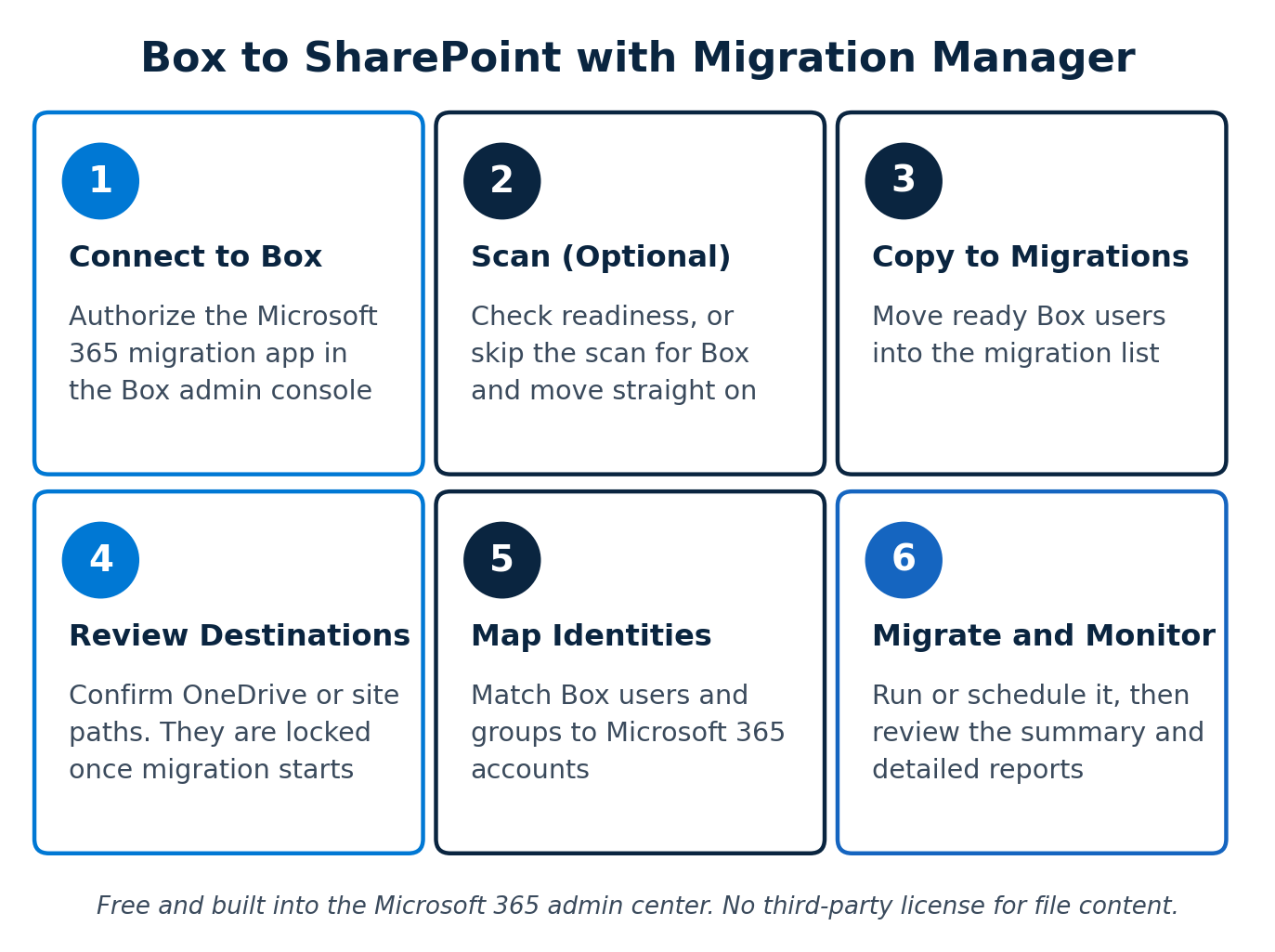
An administrator connects Migration Manager to Box, optionally scans accounts, copies ready Box users into the migration list, reviews destinations, maps identities, and then runs and monitors the migration from the admin center. The process is guided through a web interface rather than scripts.
- Connect to Box. Sign in to Box and add the Microsoft 365 migration app to your Box custom apps, using the client ID shown in the SharePoint admin center and the Box admin console. For security, the connection session expires after ten minutes of inactivity, so have your Box admin ready before you begin.
- Scan and assess (optional). Scanning flags issues that could block a migration, and you can download the scan reports. For Box this step can be skipped, and scanned or unscanned users can be sent straight to the migration list.
- Copy to the migrations list. Once a Box user is ready, add them as a migration task. Each task represents one Box user.
- Review destination paths. Confirm where each user’s content will land. Microsoft is explicit that destinations cannot be modified once migration starts, so this is the last cheap moment to fix a mistake. If a SharePoint site you specify does not exist yet, Migration Manager can provision it before migration begins, so the real question is which content goes where, not who creates every site by hand.
- Map identities. Migration Manager automatically maps identities by exact name match, which rarely covers everyone. You can edit entries individually or import a CSV, and the tool supports up to 500,000 identity entries. Create every needed domain, user, and group in Microsoft 365 first, since poor mapping can leave users without access or leave file metadata wrong.
- Migrate and monitor. Run the migration immediately or schedule it. Depending on size it can take hours or days, and the summary and detailed reports show task-level and file-level failure codes for troubleshooting.
What Does Migration Manager Carry Over from Box, and What Does It Leave Behind?
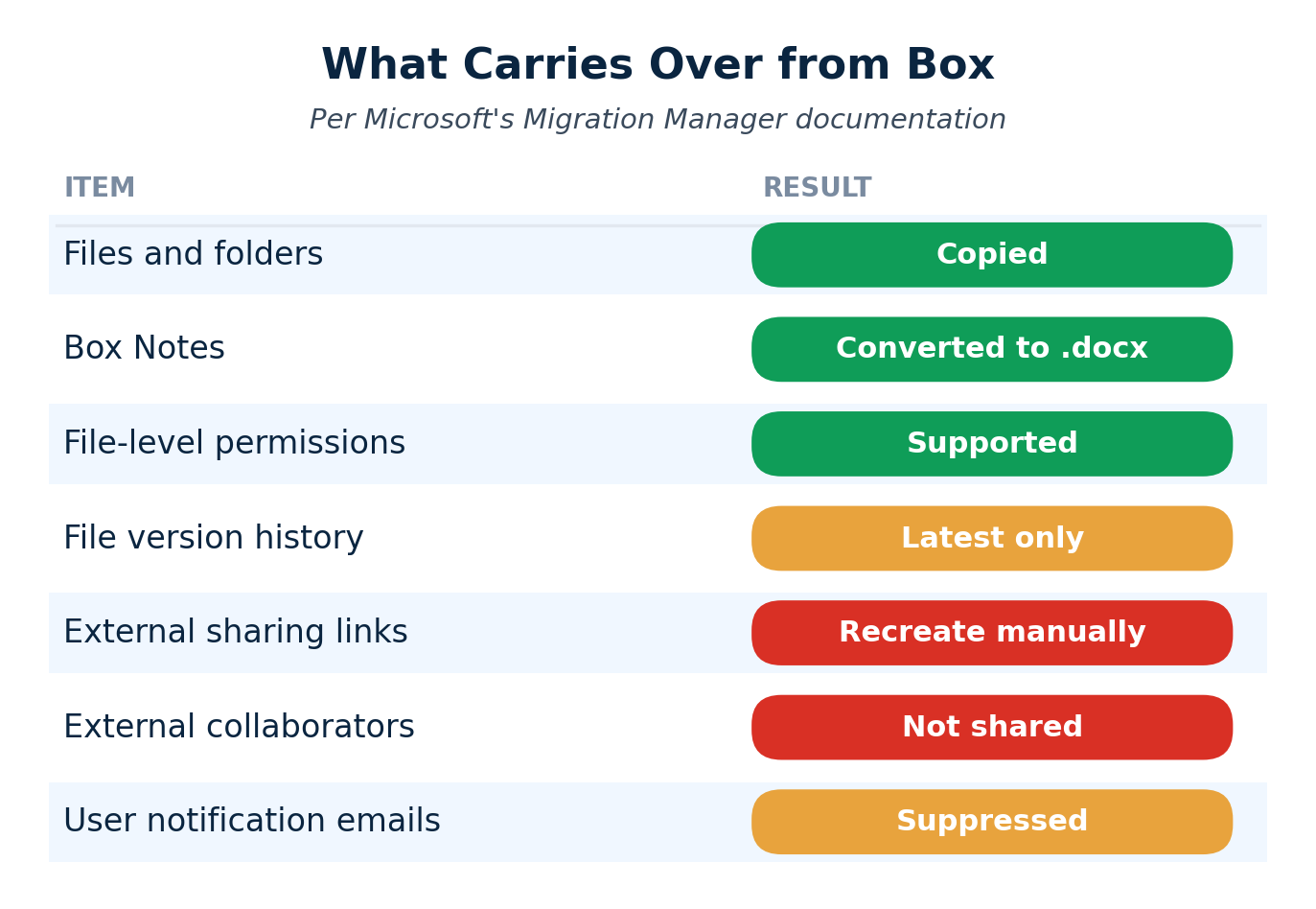
Migration Manager copies the files and folders each Box user can access, converts Box Notes to .docx, and supports file-level permissions, but it transfers only the latest version of each file and does not recreate external sharing links or share content with external collaborators. Anything a user cannot access in Box is excluded from the migration.
Scale Limits Worth Knowing
Several limits matter for larger projects. Migration Manager supports up to 50,000 tasks per tenant for cloud migrations, files up to 250 GB, and up to five separate projects per cloud source. That last one is quietly useful after an acquisition: you can run migrations from up to five different Box tenants into one Microsoft 365 tenant at the same time. There are also file size limitations and unsupported file types documented by Microsoft, which is why the optional scan is worth running on large or messy environments.
Need Box version history or external sharing preserved?
Microsoft’s free tool copies only the latest version of each file and doesn’t recreate external links. Apps4Rent pairs it with the right third-party tool so nothing important gets left behind.
Native Tool vs. Third-Party Migration Tools: Which Should You Use?
Use Migration Manager alone when you can live with the latest version of each file and can reissue external links by hand. Add a third-party tool, or hand the project to a managed migration partner, when version history, external sharing, or fine-grained permission fidelity are requirements. The two approaches are not mutually exclusive.
| Requirement | Migration Manager | Third-Party or Managed |
|---|---|---|
| Cost | No license cost | Paid, typically per user or per project |
| Files, folders, Box Notes | Covered | Covered |
| File version history | Latest version only | Often supported, depending on the tool |
| External sharing links | Not recreated | Handling varies by tool |
| Permission detail | File-level permissions with identity mapping | Richer collaborator-role mapping is often advertised |
| Best fit | Standard structures, smaller or simpler projects | Regulated, large, or heavily shared environments |
Specialist cloud-file migration platforms generally advertise support for Box version history, shared-link handling, and richer collaborator-role mapping, though capabilities and pricing vary a lot by vendor, so test any shortlisted tool against your own requirements rather than trusting a feature checklist. For organizations running Box as one workload inside a larger Microsoft 365 migration, a single partner coordinating all the workloads usually beats stitching several tools together.
How Do You Prepare for a Box to SharePoint Migration?
A well-prepared migration starts with an inventory of what is actually in Box, a SharePoint architecture decided in advance, and every Box identity created and licensed in Microsoft 365 before any data moves. Most avoidable problems trace back to skipping one of these.
- Audit Box. Identify active versus inactive users, total data per user, your largest files, how many Box Notes exist, and which folders are shared externally.
- Design the SharePoint structure. Decide which Box content becomes OneDrive content, which becomes sites or libraries, and how those line up with your Teams structure.
- Create and license identities. Every domain, user, and group needs to exist in Microsoft 365 before identity mapping, or permissions and metadata will land wrong.
- Freeze restructuring. Ask teams to stop renaming and reorganizing Box folders once migration begins. Microsoft advises making major directory changes before or after, never during.
- Inventory external sharing. List the external collaborators and shared links that matter so you can reissue them and notify partners after cutover.
- Check for legal holds. Content under hold cannot be treated as disposable once copied, so confirm retention requirements before Box is retired.
- Plan your pilot. Pick a small group that covers a normal user, a heavily shared team folder, and someone with Box Notes, and use it to test the mapping.
- Bring related repositories into scope. If network shares are also being retired, it helps to plan moving file server shares into SharePoint alongside Box so the structure is designed once, and the broader migration checklist keeps the surrounding work organized.
Step-by-Step: How to Migrate from Box to SharePoint
A complete migration uses Migration Manager for the core copy, a deliberate plan for versions and external sharing, and a staged rollout instead of a single cutover. A practical sequence looks like this:
- Build the destination. Create the SharePoint sites and libraries you decided on, and confirm users have the right Microsoft 365 licenses.
- Connect and authorize. Create the Box project in the admin center and complete the Box custom app authorization within the ten-minute window.
- Scan if the environment is large or untidy. Review the reports, fix what blocks migration, and skip the scan only when you already trust the data.
- Map identities and destinations. Import a CSV for large user bases, validate the mapping, and lock destinations only when you are sure.
- Run a pilot wave. Migrate your test group, review the detailed reports, and check how permissions and Box Notes landed.
- Migrate in scheduled waves. Use scheduling to run waves outside business hours, and let the incremental passes catch changes made after each initial copy.
- Reissue external links. Create new sharing links for external partners and tell them what changed and why.
- Validate, then retire Box. Confirm files, structure, and permissions, give users a defined window to find anything missing, and only then decommission Box.
What Happens to Box Notes, Versions, and External Links?
Box Notes are converted to .docx, only the latest file version is transferred, and external sharing links must be recreated by hand. These three behaviors cause most of the post-migration surprises, so each deserves a plan.
Box Notes
Migration Manager converts Box Notes to .docx during migration. Some elements, including File Preview, Table of Contents, and Annotations, are omitted in the conversion, so notes that rely heavily on those features deserve a spot check in your pilot. If you have read an older guide claiming Box Notes cannot be converted, that was true for a short period: Microsoft removed the conversion in October 2022 and restored it in August 2023, and the current documentation confirms it works.
File Versions
Only the most recent version of each file is transferred. For most teams that is fine. For legal, engineering, or regulated content where earlier versions matter, it is not, and the choice becomes keeping Box as a read-only archive for a defined period or using a third-party tool that supports version history.
External Sharing Links and Collaborators
Migration Manager does not recreate external sharing links, and it deliberately does not share migrated content with external collaborators, a policy Microsoft describes as protecting your organization from automatically exposing internal data. In practice that means you inventory external shares before migration, recreate the ones that still matter afterward, and tell outside partners where things moved. Migration Manager also suppresses notification emails to users, so your own communication plan has to do that job.
Not sure how your Box content should map to SharePoint?
The copy is the easy part. Apps4Rent reviews your Box environment and designs the OneDrive and SharePoint structure before a single file moves, so the result is easy to use and easy to govern.
What Are the Most Common Mistakes in a Box to SharePoint Migration?
The most common mistake is rearranging folders while the migration is running, which duplicates data because the incremental process treats a renamed or moved folder as a brand new object. Microsoft’s own example is a path changing from /Sales/Clients to /Global Sales/Clients, which leaves two copies of the Sales folder after the next incremental pass.
- Restructuring mid-migration. When sharing permissions are transferred, both owners and collaborators can end up with duplicate data after a rename. Make structural changes before or after, not during.
- Locking destinations too early. Destinations cannot be edited once a migration starts. A wrong site path means redoing the work.
- Thin identity mapping. Automapping only matches exact names. Unmapped users can lose access to content, or files can carry incorrect metadata.
- Not seeing the sites you expect. SharePoint admins only see sites where they are at least a member, newly created sites can take a couple of hours to appear, and admins in multi-geo tenants may not see some sites at all. Provision destinations ahead of time.
- Forgetting the people on the other side. External partners lose their old links with no warning, because notifications are suppressed and links are not recreated.
- Retiring Box too fast. Because the migration copies rather than moves, Box is your safety net. Keep it available until validation is genuinely finished.
How Long Does a Box to SharePoint Migration Take?
Microsoft says the copy itself can take hours or days depending on size, but the full project, including architecture, identity mapping, permission review, and external link replacement, typically runs from one to fourteen weeks. The table below is a planning estimate, not a Microsoft figure, and real throughput depends on file counts and throttling.
| Environment Size | Core Copy (Migration Manager) | Full Project |
|---|---|---|
| Under 50 Box users | 1 to 3 business days | 1 to 2 weeks |
| 50 to 250 users | 1 to 2 weeks | 3 to 5 weeks |
| 250 to 1,000 users | 2 to 4 weeks | 5 to 8 weeks |
| 1,000+ users | 4 to 8 weeks | 8 to 14 weeks or more |
Heavy external sharing, a large number of Box Notes, regulated content, or a migration running alongside several other workloads should budget toward the higher end of each range.
What Security and Compliance Steps Matter During Migration?
Migrated Box content should fall under the same Microsoft Purview retention, eDiscovery, and Data Loss Prevention policies as the rest of your tenant, which means confirming those policies before data starts landing, not after. This is easy to overlook when attention is on getting files moved.
- Confirm retention coverage. Verify that retention and eDiscovery policies apply to the new libraries and OneDrive accounts from day one.
- Review external sharing defaults. Box and SharePoint treat external sharing differently by default, so audit your tenant’s settings so links that were tightly restricted in Box don’t become looser by accident.
- Apply sensitivity labels. If you use Purview sensitivity labels, plan how migrated content gets labeled, since Box classifications do not translate automatically.
- Respect legal holds. Box content under hold stays under hold. Do not decommission Box until holds are replicated or released.
- Document the process. Regulated organizations should keep a record of source, transformation, and destination as part of their compliance trail.
Teams in government environments should check Microsoft’s specialty environments support page to confirm how Migration Manager’s Box support applies to GCC, GCC High, and DoD tenants rather than assuming it matches commercial.
How Do You Drive Adoption After the Migration?
Adoption improves fastest when people get a short, practical guide to where their Box habits map in Microsoft 365, a clear rule for where new files should live, and a firm date when Box access ends. Moving files is the easy half. Changing daily behavior is the harder one.
- Publish a one-page “where does this go now” guide. Map common Box actions, such as sharing with an external partner or finding a team folder, to their SharePoint or OneDrive equivalent.
- Set a simple filing rule. Personal and in-progress work goes in OneDrive, anything a team owns goes in SharePoint. One sentence prevents a lot of confusion.
- Name champions. One go-to person per team resolves small questions before they become reasons to keep using Box.
- Enforce a Box sunset date. An open-ended overlap fragments where files live and is the most common reason these projects drag on.
- Watch real usage. Check OneDrive and SharePoint usage reports in the weeks after cutover to confirm people have actually moved.
How Does Apps4Rent Help with Box to SharePoint Migration?
Apps4Rent plans and runs the full migration, pairing Microsoft’s native Migration Manager for the core copy with the right third-party tool where versions, permission fidelity, or external sharing matter, so the result is complete rather than partial.
- Environment assessment. A review of your Box users, data volume, Box Notes, and external sharing to see what needs special handling.
- Architecture design. Deciding what lands in OneDrive, what becomes SharePoint sites and libraries, and how that lines up with Teams.
- Identity and permission mapping. Building accurate mappings before anything moves, and reviewing how permissions land during the pilot.
- Tool selection and execution. Running Migration Manager for core content and a third-party tool where your requirements call for it.
- External sharing handover. Helping you reissue external links and notify partners so collaboration isn’t interrupted.
- Validation and support. Confirming the results before Box is retired, with 24/7 phone, chat, and email support throughout.
FAQs About Box to SharePoint Migration
-
Does Microsoft have a free tool to migrate from Box to SharePoint?
Yes. Migration Manager, built into the Microsoft 365 admin center, copies Box files and folders into OneDrive, SharePoint, or Teams at no additional license cost. Box migration has been generally available in Migration Manager since 2021, and it replaced the older Mover tool.
-
What happens to Box Notes during migration?
Migration Manager converts Box Notes to .docx files during migration. Some elements, including File Preview, Table of Contents, and Annotations, are omitted in the conversion. Microsoft briefly removed this capability in late 2022 and restored it in August 2023.
-
Does Migration Manager keep Box file version history?
No. During a Box migration only the most recent version of each file is transferred. Organizations that need historical versions preserved should use a third-party migration tool that supports version history or keep Box available as a read-only archive.
-
What happens to Box external sharing links?
Migration Manager does not recreate external sharing links, and it does not share migrated content with external collaborators. After migration, these links must be recreated manually in SharePoint or OneDrive, so plan to notify external partners of the new locations.
-
Are Box permissions migrated to SharePoint?
File-level permission migration is supported for Box in Migration Manager. Accurate results depend on identity mapping, which matches Box users and groups to Microsoft 365 accounts, so every Box identity should be created in Microsoft 365 and mapped before you start.
-
Should Box content go to OneDrive or SharePoint?
Personal and in-progress work generally belongs in OneDrive, while content owned by a team belongs in a SharePoint document library, ideally one connected to a Teams team. Deciding this mapping before migration prevents shared content from being scattered across many personal OneDrive accounts.
-
Can I consolidate more than one Box account into one Microsoft 365 tenant?
Yes. Migration Manager supports up to five separate projects per cloud source, so you can migrate several Box tenants into a single Microsoft 365 tenant at the same time. This is useful after a merger or acquisition.
-
Does the migration delete my files from Box?
No. Migration Manager copies content rather than moving it, and it never deletes data from the source. Box stays intact until you decide to decommission it, which gives you a safe window to validate the results.
-
How long does a Box to SharePoint migration take?
Microsoft says the copy itself can take hours or days depending on size. The full project, including planning, identity mapping, permission review, and external link replacement, typically takes one to fourteen weeks depending on the number of Box users and how complex the sharing structure is.
-
Does Apps4Rent help with Box migrations that need version history and external sharing preserved?
Yes. Apps4Rent combines Microsoft’s Migration Manager for core content with the right third-party tool where versions, permission fidelity, or external sharing matter, managing the whole project as a single engagement.
Apps4Rent – Tier 1 Office 365 Cloud Solution Provider