Zoho Mail to Office 365 (Microsoft 365) Migration: Step-by-Step Guide
-
 Last updated: 09 October 2026
 Migration
-
 Editorial Team
- Why Businesses Move from Zoho Mail to Microsoft 365
- What Can and Cannot Be Migrated from Zoho
- Choosing the Right Zoho Mail to Microsoft 365 Migration Method
- Pre-Migration Checklist
- Zoho to Office 365 Migration, Step by Step
- DNS Cutover: MX, SPF, DKIM and DMARC
- Manual Alternative: Export and PST Import
- Common Zoho Migration Problems and Fixes
- What It Costs and How Long It Takes
- Let Apps4Rent Handle Your Zoho Mail Migration
- Frequently Asked Questions
Quick answer
Yes. You can move from Zoho Mail to Office 365 (Microsoft 365) without losing email. The most reliable route for most businesses is an IMAP migration: create licensed mailboxes in Microsoft 365, let Exchange Online copy your Zoho mail in batches while everyone keeps working, then switch your MX records and run a final sync. IMAP moves email only, so calendars, contacts and files follow a separate path.
Zoho Mail serves small teams well. It is affordable, tidy and easy to run. The trouble usually starts when the business grows, adopts Teams or SharePoint, takes on a compliance requirement, or finds that clients and partners already work in Outlook. At that point, keeping email in one place and everything else in another starts to cost more than it saves.
This guide shows how a Zoho to Office 365 migration works in practice: what moves and what does not, which method to choose, the exact steps, the DNS records that decide whether mail reaches the inbox, and the problems that trip people up. A quick note on names: Microsoft renamed many Office 365 plans to Microsoft 365 in 2020, so you will see both here. The process is the same either way.
Why Businesses Move from Zoho Mail to Microsoft 365
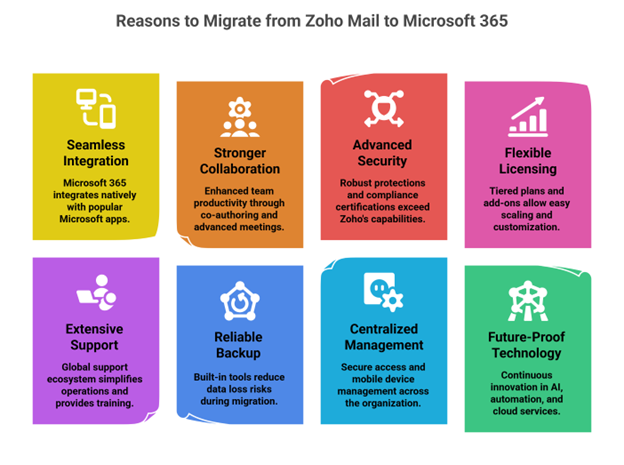
Most Zoho customers do not leave because Zoho Mail is bad. They leave because their needs outgrow a standalone mail product. These are the reasons that hold up under scrutiny:
- One identity for everything. Microsoft 365 ties mail, files, meetings and devices to a single Microsoft Entra ID account, so onboarding, offboarding and access control happen in one place.
- Collaboration where the work happens. Teams for chat and meetings and SharePoint sites for shared documents sit beside Outlook, and Word, Excel and PowerPoint support co-authoring.
- Security and compliance controls. Microsoft Defender, data loss prevention, retention policies and audit logging live in the same tenant. What you get depends on the plan, so review the security and compliance options before you buy.
- Storage that scales per user. Business plans include 1 TB of OneDrive per user, and mailboxes start at 50 GB. Compare your real needs plan by plan, not by headline numbers.
- Licensing that flexes. Per-user licenses and optional add-ons let you scale without changing platforms.
- Familiar tools for clients and staff. Outlook is the client many partners and customers already use, which makes shared calendars and meeting invites smoother.
Is staying on Zoho ever the right call? Sometimes. If you have a handful of users, no Microsoft dependencies and no compliance pressure, the move may not pay off. If you also run Zoho CRM or Books, remember that changing email does not force you to change them.
What Can and Cannot Be Migrated from Zoho
Mail is the easy part. Everything else depends on which Zoho apps your team uses, and each one has its own destination in Microsoft 365.
| Zoho app | Microsoft 365 destination | What to expect |
|---|---|---|
| Zoho Mail | Exchange Online mailboxes and Outlook | Messages and folders move over IMAP. Rules, signatures and aliases are recreated by hand. |
| Zoho Calendar | Outlook calendar | IMAP does not carry calendars. Export ICS files and import them, or use a tool that migrates calendars. |
| Zoho Contacts | Outlook and Exchange contacts | Export as CSV or vCard, then import into Outlook or Exchange Online. |
| Zoho WorkDrive | OneDrive and SharePoint | A separate file migration with its own permissions mapping. |
| Zoho Cliq | Microsoft Teams | Chat history does not usually carry over. Rebuild channels and groups in Teams. |
| Zoho Writer, Sheet and Show | Word, Excel and PowerPoint | Export as .docx, .xlsx and .pptx, then check formatting and formulas. |
| Zoho CRM | Dynamics 365 CRM or another CRM | A separate data project. It is not part of a mailbox move. |
| Aliases, groups, shared mailboxes | Aliases, distribution lists, shared mailboxes | Recreate these in Microsoft 365 before any mail is copied. |
The practical rule: plan the mailbox move first, because it is time-sensitive, and schedule files, calendars and chat as follow-on tasks.
Also Read:How to Migrate from Zoho WorkDrive to SharePoint Online?
Choosing the Right Zoho Mail to Microsoft 365 Migration Method
There is no single best way to migrate Zoho Mail to Microsoft 365. The right choice depends on your Zoho plan, how many mailboxes you have, and whether calendars and contacts need to travel with the mail.
| Method | Best for | What moves | Watch out for |
|---|---|---|---|
| IMAP migration batch | Small and mid-sized teams with an admin comfortable in the Exchange admin center | Email and folders | Email only, a 35 MB limit per message, and a password or app password for every mailbox |
| Export and PST import | Zoho plans without IMAP access, or historical archives | Email, after file conversion | Zoho exports .eml files, so conversion to PST is needed. Slow and manual. |
| Third-party migration tool | Teams that also need calendars and contacts moved on a schedule | Email, plus calendars and contacts depending on the tool | Per-mailbox fees, and you still own the DNS cutover |
| Managed migration | Anyone who wants no surprises and no admin time | Everything in scope, planned and tested | Pick a partner that runs a pilot and documents the cutover |
Not sure where you land? Follow this decision path.
For most small and mid-sized businesses, an IMAP batch, whether self-run or managed, is the sweet spot. It keeps mail flowing during the copy, and you decide when to flip the switch. Third-party tools earn their fee when calendars and contacts matter. Managed projects earn it when nobody on your side has a free weekend.
Pre-Migration Checklist
Preparation decides how smooth the cutover is. Work through this list before you touch a single mailbox.
In Zoho Mail
- Confirm you have admin access, and export or back up any mailbox you cannot afford to lose.
- Check that IMAP access is allowed for every mailbox you plan to migrate. It depends on each user’s settings and your organization’s mail policies, and it may not be available on Zoho’s free plan.
- Generate application-specific passwords for users with two-factor authentication, or agree on temporary passwords for the migration window.
- List every alias, group, shared folder and forwarding rule.
- Flag messages over 35 MB, because Exchange Online skips them during IMAP migration, and ask users to clean up first.
In Microsoft 365
- Choose a plan and create the tenant.
- Add and verify your domain, but leave MX records alone for now.
- Create users and assign licenses. Mailboxes must exist before IMAP migration can copy mail into them.
- Turn on multi-factor authentication and baseline security policies before anyone signs in.
For DNS and people
- Find out who controls your DNS and get access in advance.
- Lower the TTL on your MX record a day or two before cutover.
- Pick a low-traffic window, and tell users what will change: a new Outlook profile and a new sign-in.
Zoho to Office 365 Migration, Step by Step
Here is the full sequence at a glance, followed by what to do at each stage.
Step 1: Assess your Zoho environment
Start with a census. Count users and mailboxes, record each mailbox size, and list aliases, groups, shared folders, forwarding rules and any message over 35 MB. Check which Zoho plan you are on, because IMAP access decides which migration method is open to you. Finally, find out who holds the DNS login. A cutover that waits three days for a registrar password is a cutover that goes badly.
Step 2: Set up Microsoft 365 without touching mail flow
Choose a plan using our side-by-side plan comparison, create the tenant, and add your domain with the verification TXT record. Leave MX records pointing at Zoho. Create each user, assign a license, and add aliases and shared mailboxes. Exchange Online cannot copy mail into a mailbox that does not exist yet. Turn on multi-factor authentication now, so accounts are protected from the day they go live.
Step 3: Prepare Zoho Mail for IMAP
In Zoho, open Settings, then Mail Accounts, and tick IMAP Access for each mailbox. Where two-factor authentication is on, generate an application-specific password for the migration. Use the right server: Zoho’s IMAP help lists imappro.zoho.com for custom-domain organization accounts and imap.zoho.com for personal accounts, both on port 993 with SSL. Other Zoho data centers use their own domain ending, such as .eu, .in or .com.au. Using the personal server name for a business account is one of the easiest mistakes to make.
Step 4: Run a pilot with two to five mailboxes
Pick a small group that includes one large mailbox and one power user with plenty of folders. Migrate them first and ask those users to check folders, dates and attachments. Microsoft recommends running small test batches to learn how long a batch takes before you size the rest. The pilot is where you find the two-factor password problem, the wrong server name and the folder that refuses to map, while it still costs you nothing.
Step 5: Migrate the remaining mailboxes in batches
In the Exchange admin center, open Migration, add a migration batch, choose migration to Exchange Online, then IMAP migration. Create a migration endpoint with your Zoho IMAP server, port 993 and SSL, then upload a CSV listing each mailbox’s email address, username and password. Start with a modest batch and scale up. Mail keeps flowing to Zoho while this runs, so users notice nothing. For more console detail, see our general IMAP migration walkthrough. Remember the limits: email only, with a 35 MB cap per message.
Step 6: Validate the migrated data
Compare item counts and folder trees between Zoho and Outlook for a sample of mailboxes, then open a few old threads with large attachments. Review the migration report for skipped items. Oversized messages are the usual reason. Import calendars and contacts now, recreate signatures and rules, and ask department heads to confirm sign-off before you schedule the switch.
Step 7: Cut over your DNS
A day or two before cutover, lower the TTL on your MX record. On cutover day, update the MX, SPF, DKIM, DMARC and Autodiscover records as shown in the table below, then send test mail in both directions to outside addresses. Because some senders keep delivering to Zoho while DNS propagates, run a final sync a day later to collect stragglers. Watch mail flow closely for the first 48 hours.
Step 8: Finish up and support your users
Set up Outlook on desktop and mobile, remove the old Zoho IMAP account so people do not see duplicates, and walk staff through the new sign-in. Review security next. Plans such as Business Premium add Defender and device management if you need them. Keep Zoho active for about 30 days as a safety net, export a final archive if required, and only then cancel.
DNS Cutover: MX, SPF, DKIM and DMARC
DNS is where migrations quietly fail. Mail still arrives, but it lands in spam, or it bounces for a few hours. This table shows what changes.
| Record | Zoho setup | Microsoft 365 setup |
|---|---|---|
| MX | Zoho hosts such as mx.zoho.com, mx2.zoho.com and mx3.zoho.com. The suffix varies by data center. | The value shown in your Microsoft 365 admin center, formatted like yourdomain-com.mail.protection.outlook.com, with priority 0. |
| SPF (TXT) | Includes Zoho’s sending servers. | v=spf1 include:spf.protection.outlook.com -all, merged with any other legitimate senders into a single record. |
| DKIM | Zoho’s DKIM key. | Two CNAME records (selector1 and selector2), then signing enabled in the Microsoft Defender portal. |
| DMARC (TXT at _dmarc) | Your existing policy, if any. | Keep your current policy through cutover, then review reports. Start at p=none if you have none. |
| Autodiscover (CNAME) | Not needed for Zoho. | autodiscover.outlook.com |
Two timing tips. Publish the DKIM CNAME records before cutover so your first Microsoft-sent messages are already signed. And while users still send from Zoho, keep both Zoho and Microsoft in your SPF record, then remove Zoho once the cutover is stable.
Manual Alternative: Export and PST Import
If IMAP is not available on your Zoho plan, or you are moving a few mailboxes and an archive, export is the fallback.
For a single mailbox: in Zoho Mail, open Settings, then Import/Export, choose a date range or the whole mailbox, and export. Zoho delivers .eml files that Outlook can open and that you can drag into folders in the new mailbox. That is fine for a handful of users.
For several mailboxes or large volumes: Microsoft’s import service accepts PST files, so the .eml exports must be converted first, usually with a third-party converter. You then upload the files with the AzCopy tool and a SAS URL to a temporary Azure location, and map each file to a mailbox. Microsoft’s PST import overview also describes drive shipping, which takes 7 to 10 business days after the drive arrives, and notes a 20 GB limit per PST file.
The catch is conversion. Attachments can break, timestamps and flags can be stripped, and every step is manual. The more data you have, the slower and riskier it gets, which is why most teams use this route only when IMAP is off the table.
Common Zoho Migration Problems and Fixes
The usual culprits are authentication, server names and DNS. Here is what to check when something stalls.
| Problem | Likely cause | Fix |
|---|---|---|
| Login or authentication fails | IMAP Access is off, two-factor authentication is on without an app password, or the server name is wrong | Enable IMAP, generate an application-specific password, and use the imappro server for organization accounts |
| Connection blocked or times out | A firewall or security rule is blocking port 993, or too many connections are open at once | Allow port 993, reduce batch size and run large batches off-hours |
| Messages missing after migration | Messages over 35 MB are skipped, or archived mail is not exposed over IMAP | Check the migration report, move large items manually, and include archived mail in Zoho’s IMAP settings |
| Duplicate mail or folders in Outlook | The old Zoho IMAP account still sits beside the new Exchange account | Remove the Zoho account from the Outlook profile after migration |
| Mail bounces or lands in spam | MX, SPF, DKIM or Autodiscover records are wrong or still propagating | Compare against the DNS table, enable DKIM signing and test with outside accounts |
| Calendar or contacts missing | IMAP never moves them | Export ICS and CSV or vCard files and import them, or use a tool that migrates them |
| Slow transfers | Zoho’s IMAP throughput sets the pace, not Exchange Online | Start early, stage mail before cutover and schedule the final sync |
Most of these surface during the pilot, which is exactly why the pilot exists.
Not sure which Zoho migration route fits your business?
Tell us how many mailboxes you have, which Zoho plan you are on and where your DNS is hosted. An engineer will recommend the safest method and a cutover window.
What It Costs and How Long It Takes
Three things make up the bill: Microsoft 365 licenses, migration labor or tool fees, and a short overlap where you pay for Zoho and Microsoft at the same time. A do-it-yourself IMAP migration has no tool fee but costs admin hours. Per-mailbox tools add a fee per user, and our breakdown of what migration tools really cost against a managed project shows how that adds up. Apps4Rent includes migration free on its Office 365 plans, which leaves licensing as your main cost.
Time depends on mailbox size, the number of users and how fast Zoho serves IMAP requests. A small team can plan on a few days end to end, including the pilot and cutover, while large mailboxes stretch the copy phase. Your pilot is the best estimator: measure its transfer rate, apply it to the remaining data, and add a buffer.
Let Apps4Rent Handle Your Zoho Mail Migration
You can run this migration yourself, and many teams do. But if you would rather not spend a weekend debugging app passwords and DNS records, Apps4Rent will run it for you. As a Microsoft Solutions Partner and Tier 1 Direct CSP, we have completed 10,000+ migrations for organizations in 90+ countries, with certified engineers on phone, chat and email around the clock. Here is what the project covers:
- Assessment of your Zoho setup, users and DNS
- Tenant setup and licensing on the plan you choose
- A pilot migration, then batch migration of the remaining mailboxes
- Calendar and contact migration where it is in scope
- DNS cutover with SPF, DKIM and DMARC configured
- Validation, Outlook and mobile setup, and post-migration support
Migration is free on our Office 365 plans. Read more about our mailbox migration service, or send us your requirement below and an engineer will recommend the right route. Prefer to talk? Call 1-866-716-2040.
Frequently Asked Questions
-
Can I migrate Zoho Mail to Office 365 (Microsoft 365)?
Yes. Exchange Online can pull mail from Zoho over IMAP, so mailboxes, folders and messages move across while your team keeps working. IMAP carries email only, so calendars, contacts and files are moved separately. Apps4Rent can run the whole project, including the DNS cutover.
-
What is the best way to migrate Zoho Mail to Microsoft 365?
For most businesses, an IMAP migration batch in the Exchange admin center, or a managed service that automates the same approach. It copies mail server to server, avoids PST conversion and lets you stage the move before switching MX records. Export and PST import is the fallback for plans without IMAP access.
-
How do I transfer my Zoho email to Outlook?
You can add the account to Outlook over IMAP for day-to-day access, or migrate the mailbox into Microsoft 365 so Outlook connects to Exchange Online directly. A full migration is the better choice, because your mail, folders and future messages all live in one place instead of syncing from two systems.
-
Can I migrate Zoho calendars and contacts to Microsoft 365?
Yes, but not through IMAP. Export calendars as ICS files and contacts as CSV or vCard files from Zoho, then import them into Outlook or Exchange Online, or use a migration tool or managed service that carries them automatically. Plan this before cutover so nothing is missing on day one.
-
How long does a Zoho to Microsoft 365 migration take?
It depends on mailbox sizes, the number of users and how quickly Zoho serves IMAP requests. Most small businesses should plan for days rather than hours, including a pilot and the DNS cutover. Run the pilot first, because its measured transfer rate gives you a realistic estimate for the remaining mailboxes.
-
Can I migrate Zoho Mail to Office 365 without downtime?
Yes, if it is staged properly. Mail keeps flowing to Zoho while mailboxes are copied, so the MX switch is the only moment that matters. Lower your DNS TTL beforehand, cut over in a quiet window, and run a final sync so messages that arrived during propagation are not left behind.
-
Do I need to change MX records, and what happens to SPF, DKIM and DMARC?
Yes. Point MX at Microsoft 365, update your SPF record, publish the two DKIM CNAME records and enable signing, and review your DMARC policy. Add the Autodiscover CNAME too. Skipping the SPF and DKIM updates is a common reason migrated domains land in spam.
-
Is there a free tool to migrate from Zoho to Office 365?
Partly. IMAP migration in the Exchange admin center comes with your Microsoft 365 licenses, and manual export is free too. The trade-off is your time: no calendar or contact transfer, a 35 MB message cap and hands-on DNS work. Apps4Rent includes migration at no extra charge on its Office 365 plans.
-
Can Zoho WorkDrive files move to OneDrive or SharePoint?
Yes, but it is a separate file migration with its own permissions mapping, because a mailbox migration never touches WorkDrive. Our guide to moving WorkDrive files to SharePoint Online explains the process.
-
Will my folder structure stay intact after migration?
Generally yes. IMAP migration recreates your Zoho folder hierarchy in Exchange Online. Rules, signatures and server-side filters are not copied and need to be recreated, and unusual folder names or very large folders can need attention. Check a few mailboxes during the pilot to catch surprises early.
-
How much does a Zoho to Microsoft 365 migration cost?
You pay for Microsoft 365 licenses, plus labor or tool fees if you use them. A do-it-yourself IMAP migration has no tool cost but takes admin time. Apps4Rent includes migration on its Office 365 plans, so your main cost is the plan you choose. Compare plans before you decide.
-
Should I cancel Zoho right after cutover?
No. Keep Zoho active for about 30 days as a safety net while you validate mail, calendars and contacts. Then export a final archive if you need one and cancel. Cancelling too early can destroy the only copy of anything that was skipped or missed.
Apps4Rent – Tier 1 Office 365 Cloud Solution Provider